Quick answer: In a Zoom meeting, click Show Captions in the meeting toolbar. If captions are unavailable or restricted by the meeting, you can caption the audio privately on your Mac with NotchLive. Apple Live Captions is another free option on supported Apple silicon Macs.
The right method depends on whether Zoom captions are available in that meeting, whether you need the text only for yourself, and whether you want translation or a saved transcript. NotchLive works from audio playing on your Mac, so it does not join the call as a meeting bot or depend on the meeting's caption controls.
Before we get into the how, here's why more and more people are turning on captions for Zoom meetings:
Accessibility. For deaf and hard-of-hearing participants, captions aren't optional — they're essential. Live captions make meetings inclusive without requiring someone to manually transcribe.
Non-native speakers. If English (or whatever language is being spoken) isn't your first language, reading along while listening dramatically improves comprehension.
Focus and retention. Research consistently shows that combining audio with text helps you stay engaged and retain more information. Captions catch the words you miss when your attention drifts; our guide to live captions and ADHD focus looks more closely at that re-entry problem.
Searchable record. Some captioning tools let you save transcripts, giving you a searchable log of what was said — no more "can someone share the meeting notes?" messages.
Method 1: Turn on Zoom's built-in captions
Zoom can generate captions inside the meeting. Participants can usually turn them on for themselves, although the host or account administrator controls whether automated captions and particular languages are available.
How to set it up
Join the Zoom meeting.
In the meeting controls, click Show Captions. If it is not visible, open More and look for the caption control.
If Zoom asks for a speaking language, choose the language being spoken in the meeting.
To read more context, open the arrow beside the caption control and choose View Full Transcript.
If captions are restricted, request that the host enable them or use one of the participant-side Mac options below.
Built into Zoom, with no extra caption app required
Captions and the full transcript stay inside the meeting window
Some accounts can save the transcript or use translated captions
Cons
Availability depends on the meeting. A host or administrator can restrict automated captions, languages, saving, or translation.
The workflow stays inside Zoom. It does not caption another app, browser video, or media player after the call.
Processing depends on the account and client configuration. Zoom also offers on-device automated captions on eligible desktop clients, so check the settings that apply to your organization.
Method 2: Caption the call privately with NotchLive
Use NotchLive when you want a participant-side caption layer that does not depend on Zoom's caption controls. It captions audio available to your Mac with on-device Whisper, and it can keep the text in a compact overlay for you or show it in a separate Caption Display window.
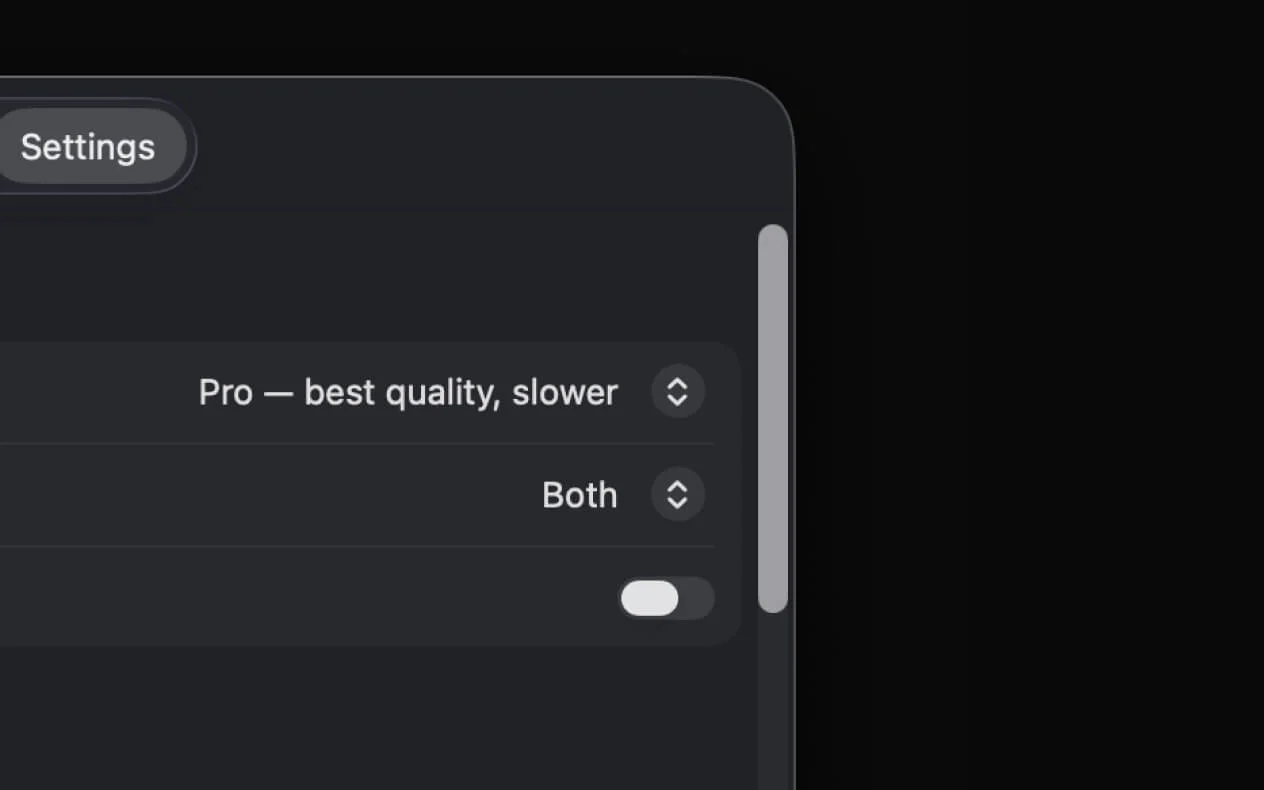
Open the app and choose Application & Media to caption the incoming Zoom audio. Choose Both when you also want your microphone included.
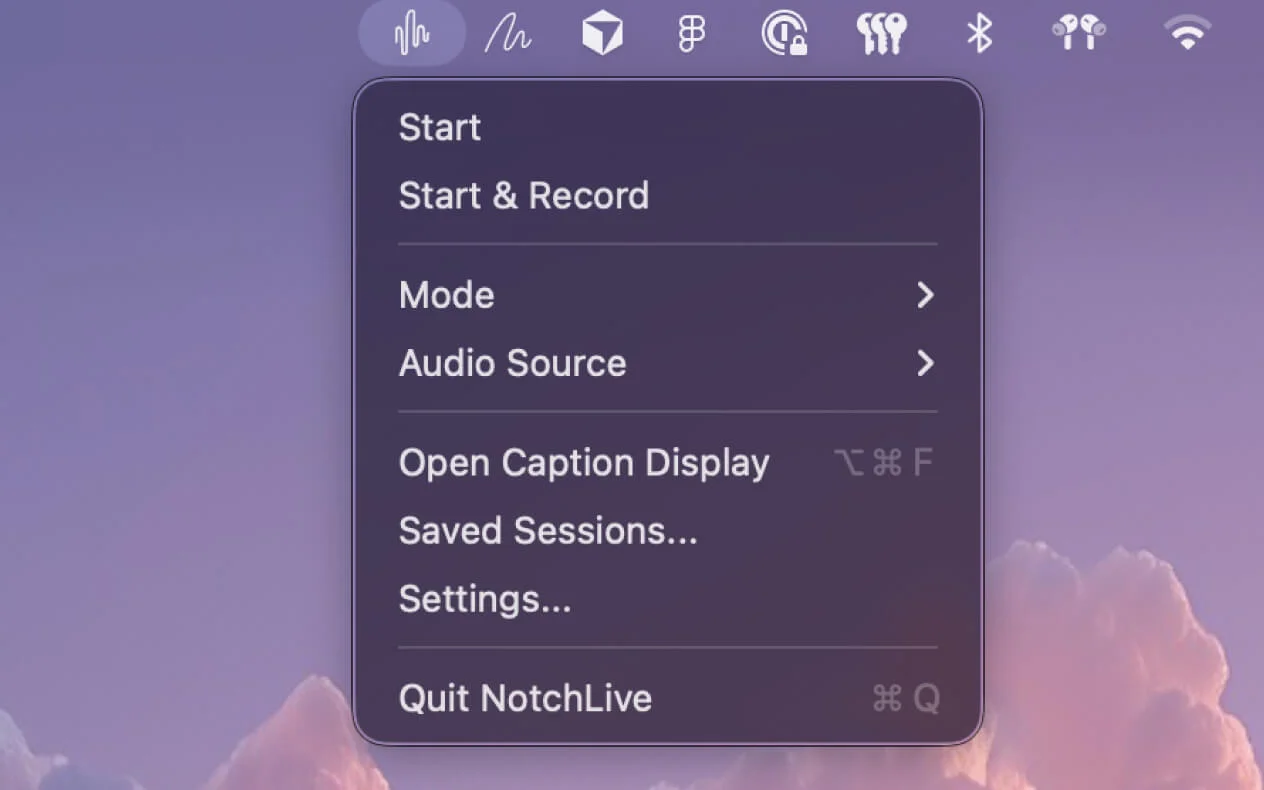
Press ⌥⌘C (Option-Command-C) to start captioning.
Keep the compact caption view for yourself. It stays outside the Zoom meeting and does not appear as another participant.
When presenting: press ⌥⌘F (Option-Command-F) to open the separate Caption Display window.
If you want the audience to see that window, include it in the screen or window you share.
Why this is better for presenters and hosts
Private by default. The compact caption view is for you and does not change the meeting for anyone else.
Shareable when needed. Caption Display can be included in a shared screen for a presentation or class.
Dual-stream captioning. NotchLive captures your mic and system audio separately. Your words and the other speakers' words are both captioned, even when overlapping.
Record and export with Pro. Deliberately save a session when you need a transcript after the meeting.
Recover context while the call continues.Live Timeline lets you scroll, search, copy, or export captions that have arrived so far while new Zoom captions keep coming in.
Translated speech. Translate captions into 20 languages on the fly. Present in English while a colleague reads captions in Spanish, German, or Japanese.
Independent of Zoom captions. NotchLive captures audio available to the Mac, so it does not depend on the host's caption settings.
Audio transcription runs on-device. NotchLive uses Whisper locally on your Mac and does not send audio to a NotchLive transcription service.
Tip: If you only need captions for yourself, skip the Caption Display and use the notch captions. No bot joins the meeting, and your captions stay local to your Mac.
Method 3: Apple Live Captions
Apple Live Captions can transcribe computer audio or microphone audio in a system caption window. It is available on supported Apple silicon Macs and does not require a Zoom caption setting.
How to set it up
Open System Settings → Accessibility → Live Captions.
Toggle Live Captions to On.
Join the Zoom call. If necessary, use the Live Captions menu to choose Computer Audio rather than the microphone.
The limitations
Apple Live Captions is the simplest participant-side option, with a few practical limits:
Hardware and region limits. Apple documents Live Captions for Apple silicon Macs, and availability varies by language, country, and region.
One selected audio source. The Live Captions control switches between computer audio and microphone audio.
No saved NotchLive-style session. It is designed as a live accessibility window rather than a review, translation, and export workspace.
Apple explains the supported hardware, audio-source control, and availability limits in its Live Captions guide for Mac.
Comparison: All Three Methods Side by Side
Feature
Zoom Built-in
NotchLive
Apple Live Captions
Works without Zoom captions
No
Yes
Yes
Captions other Mac apps
No
Yes
Yes
Translation
Account-dependent
20 languages
Not for general app audio
Transcript export
When saving is allowed
With Pro
No saved session
Privacy
Configuration-dependent
Local transcription
On-device
Price
Free
Free / Pro $24.99
Free
Requires host to enable
Sometimes
No
No
Best Setup Based on Your Role
Not sure which method to use? Here's a quick recommendation based on how you typically use Zoom:
You're a participant (camera on, not sharing)
Start here: click Show Captions in Zoom.
If unavailable or restricted: use NotchLive or Apple Live Captions without changing the meeting.
You're a presenter or host who shares their screen
For captions controlled by the meeting: use Zoom's built-in captions.
For captions inside the content you share: use NotchLive Caption Display and include its window in the shared view.
You're a non-native speaker
Check Zoom first: translated captions may be available for the meeting's account and language pair.
For participant-side Mac translation: NotchLive Pro can translate supported captions after the required language packs are installed.
Bottom line: Try Zoom's Show Captions control first. Use NotchLive when captions are unavailable, when you want them to stay participant-side, or when you need the same private caption workflow across Zoom and other Mac audio.
Download NotchLive free
Private live captions for every Zoom call. On-device Whisper AI. No meeting bot. Free forever — Pro $24.99 one-time.
 NotchLive