 NotchLive
NotchLive Start Guide
How to set up NotchLive on Mac.
NotchLive dictates into supported Mac text fields, captions app audio and microphone speech, translates live captions, builds reviewable local meeting records, and can share enabled context with Codex or Claude Desktop through local MCP.
Updated for NotchLive 1.10.2
NotchLive 1.10.2 improves caption reliability, spoken-language selection, sleep recovery, model repair, and Meeting Intelligence continuity. Translate existing timeline captions progressively.
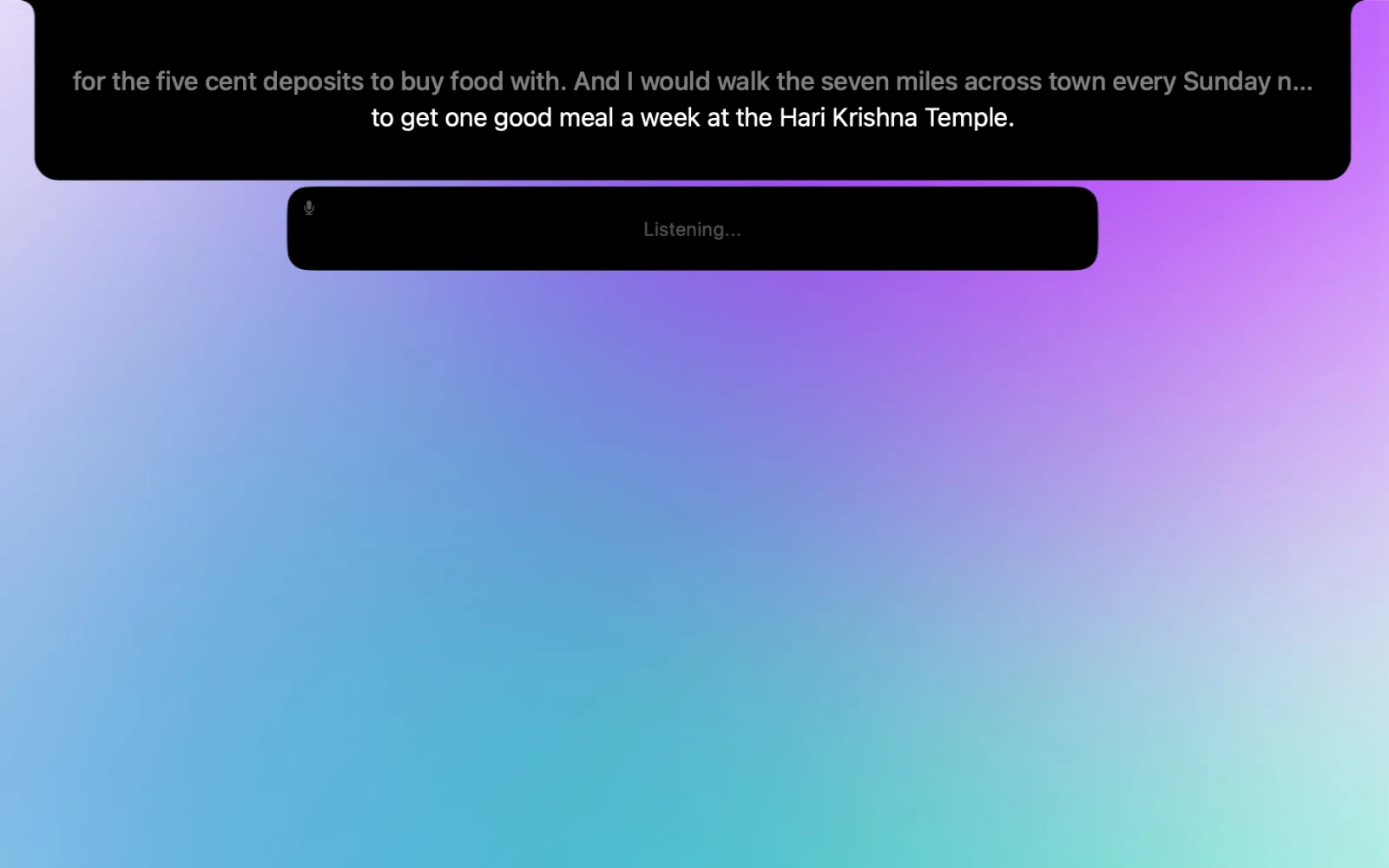
First-time setup
The first launch flow is built around the same notch surface you use later. Finish these steps once, then start captions from the menu bar, notch controls, or shortcut.
- Install NotchLive. Open the DMG, drag NotchLive into Applications, and launch it from Applications or Spotlight.
- Allow app audio. macOS calls this Screen Recording permission, even though NotchLive uses it to hear apps and media for captions.
- Allow microphone access if you need it. This is optional for app audio, but needed for My Voice, Everything mode, and Voice Notes.
- Prepare a speech model. Small is the best starting point for most people. You can switch later in Settings.
- Decide on Meeting Intelligence. Pro users on supported Macs can turn on private meeting summaries during setup.
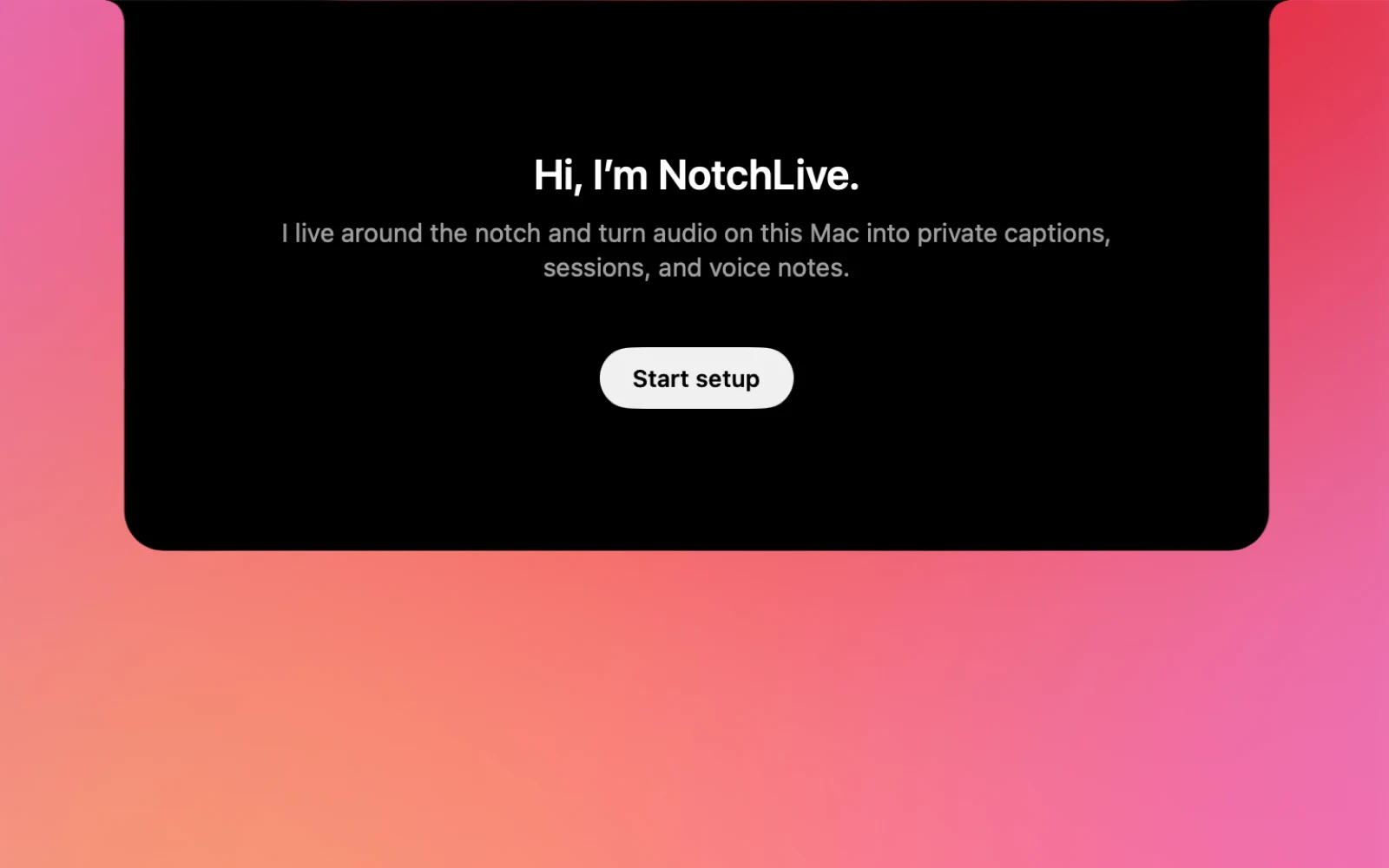
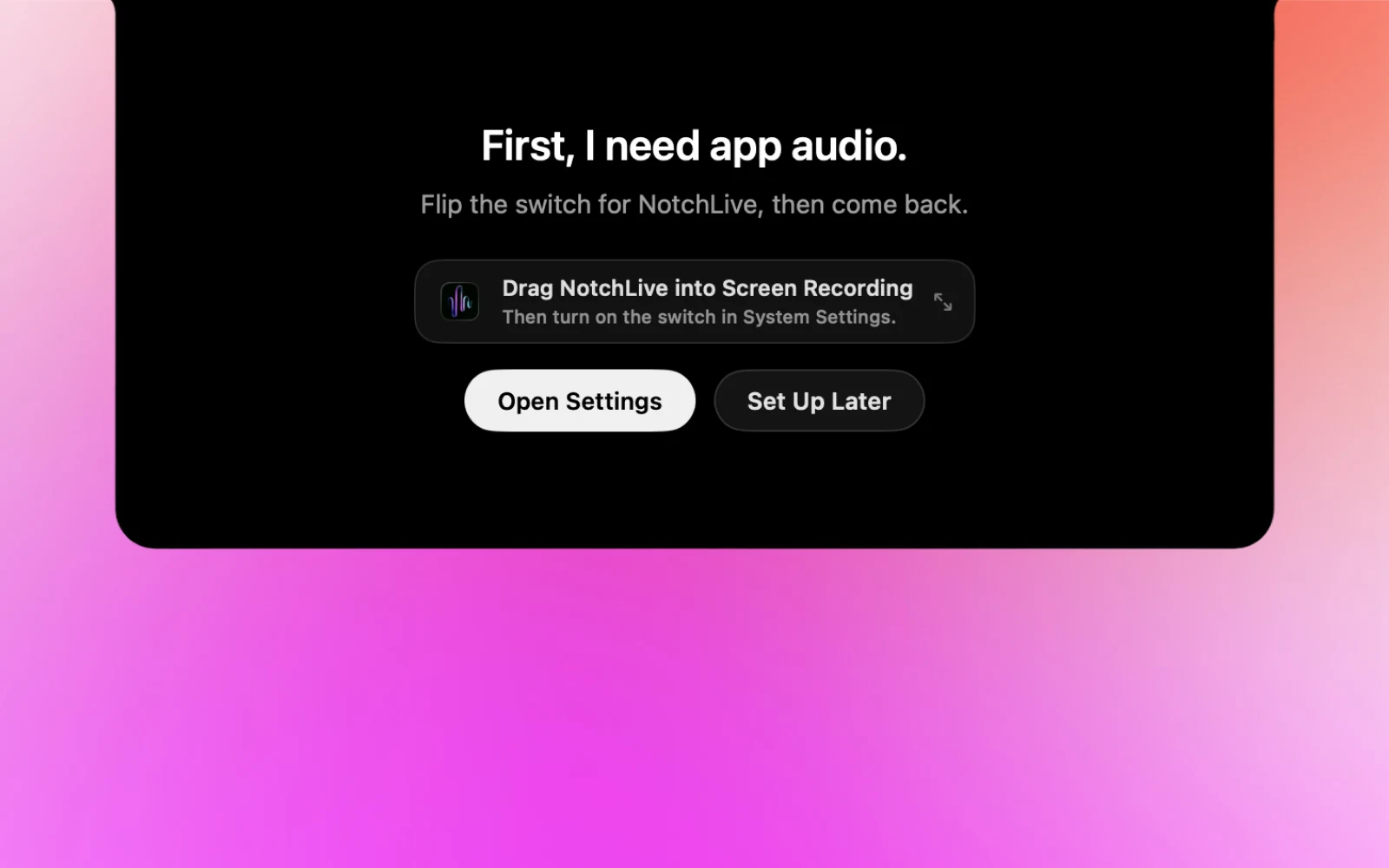
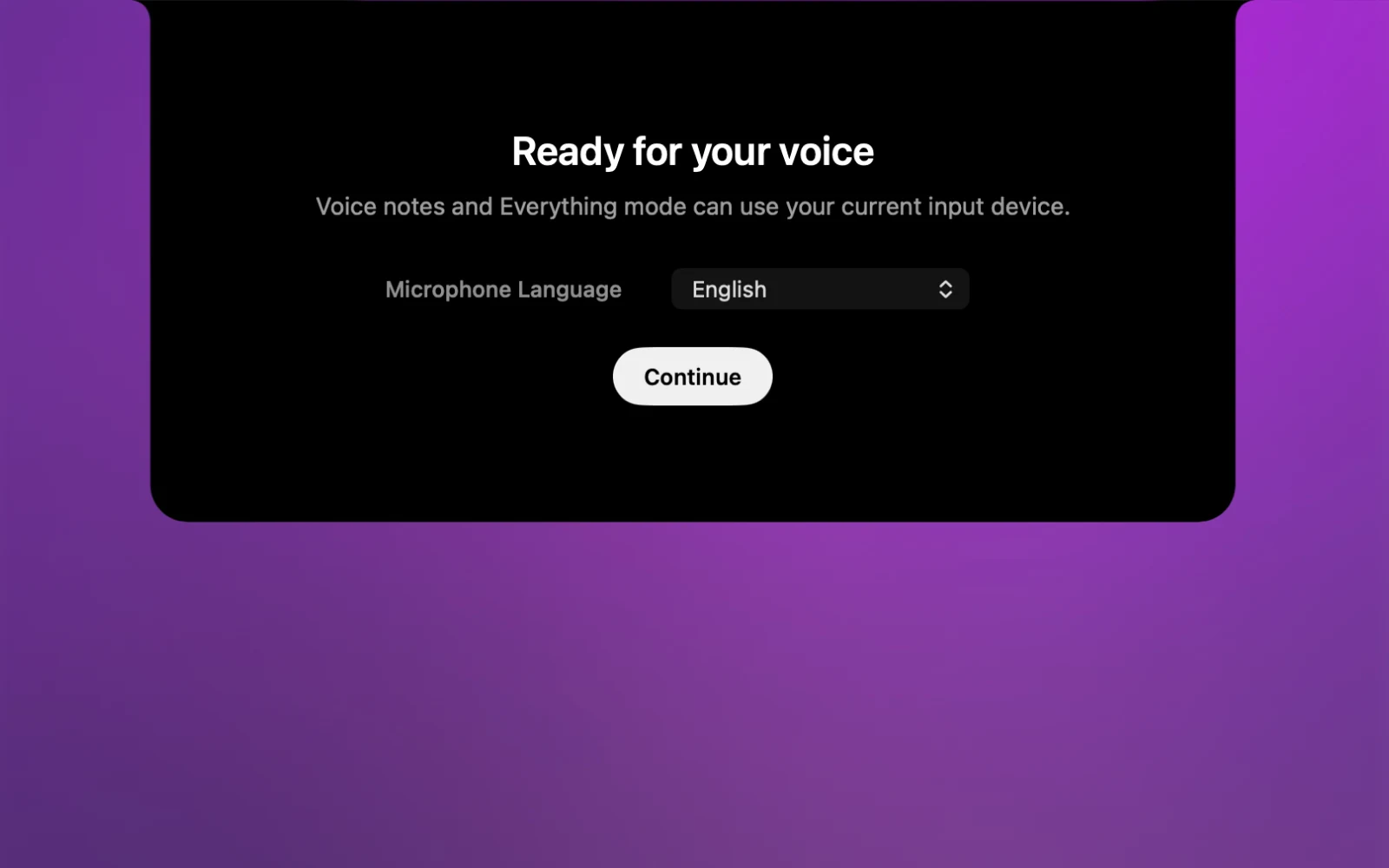
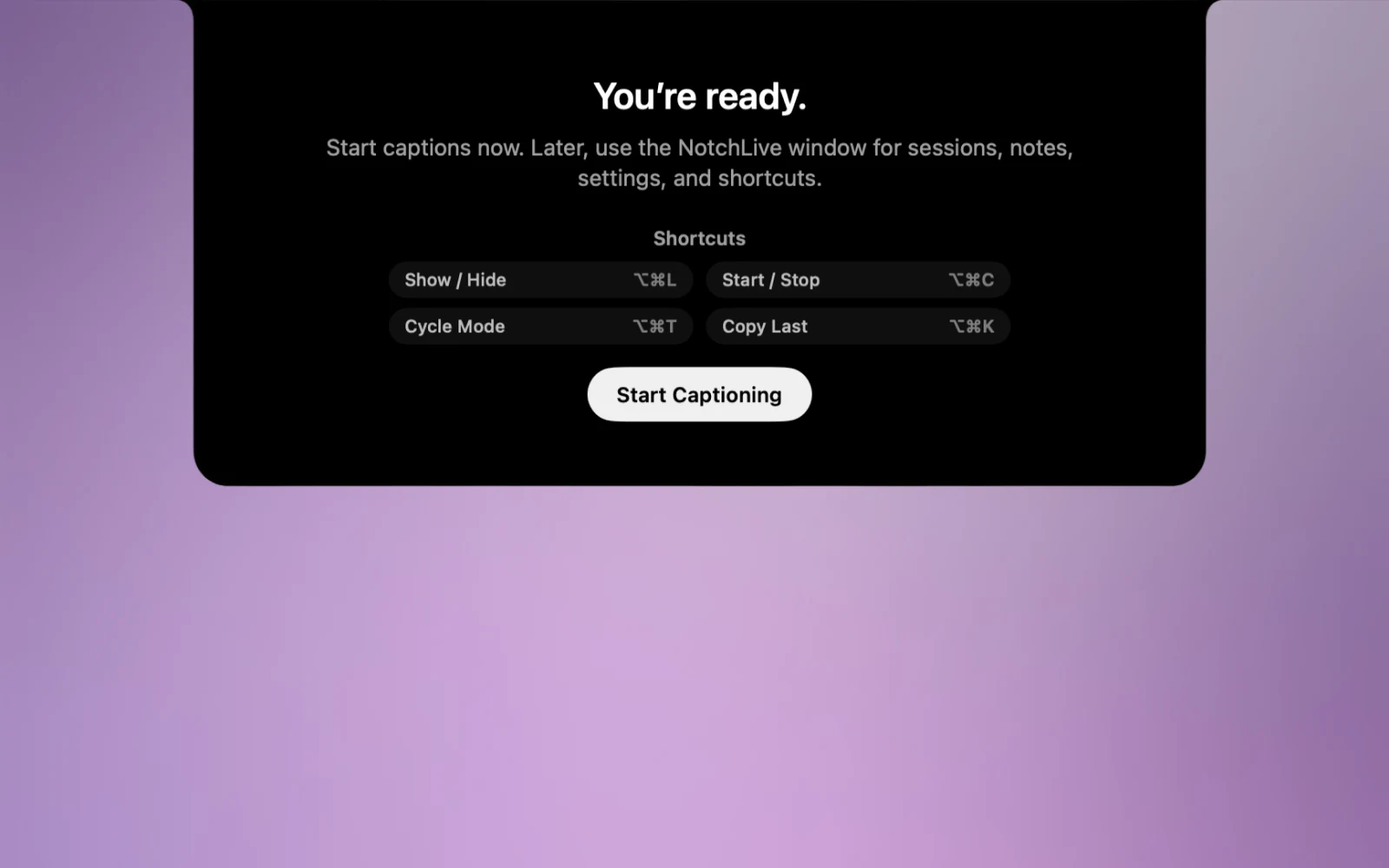
If setup is not finished: NotchLive shows a Finish Setup action in the notch, menu bar, main window, and Settings. Use it to recover missing app audio permission or a missing speech model.
Current new-install defaults: NotchLive starts in Everything mode with Timeline, a 40-point floating caption size, the top-center app switcher off, and Launch at Login off. Translation follows the Mac's preferred supported language, microphone language starts on Auto, and skipping microphone access leaves captions in Apps & Media mode. Existing users keep their preferences.
First captions
Open a Zoom call, Google Meet, Microsoft Teams meeting, podcast, lecture, video, or any other Mac audio source. Then start captions. For the broader product view, see Mac live captions for calls, videos, and Mac audio.
- Press ⌥⌘C to start or stop captions.
- Use the NotchLive menu bar item if you prefer clicking.
- Hover over the notch to reveal controls for mode, recording, display, audio source, Ghost Mode, and Settings.
- Press ⌥⌘K to copy the latest caption.
Floating caption window
Open Caption Display when you want larger captions, a different position on screen, or space to read back through the conversation. It uses the same caption stream as the notch.
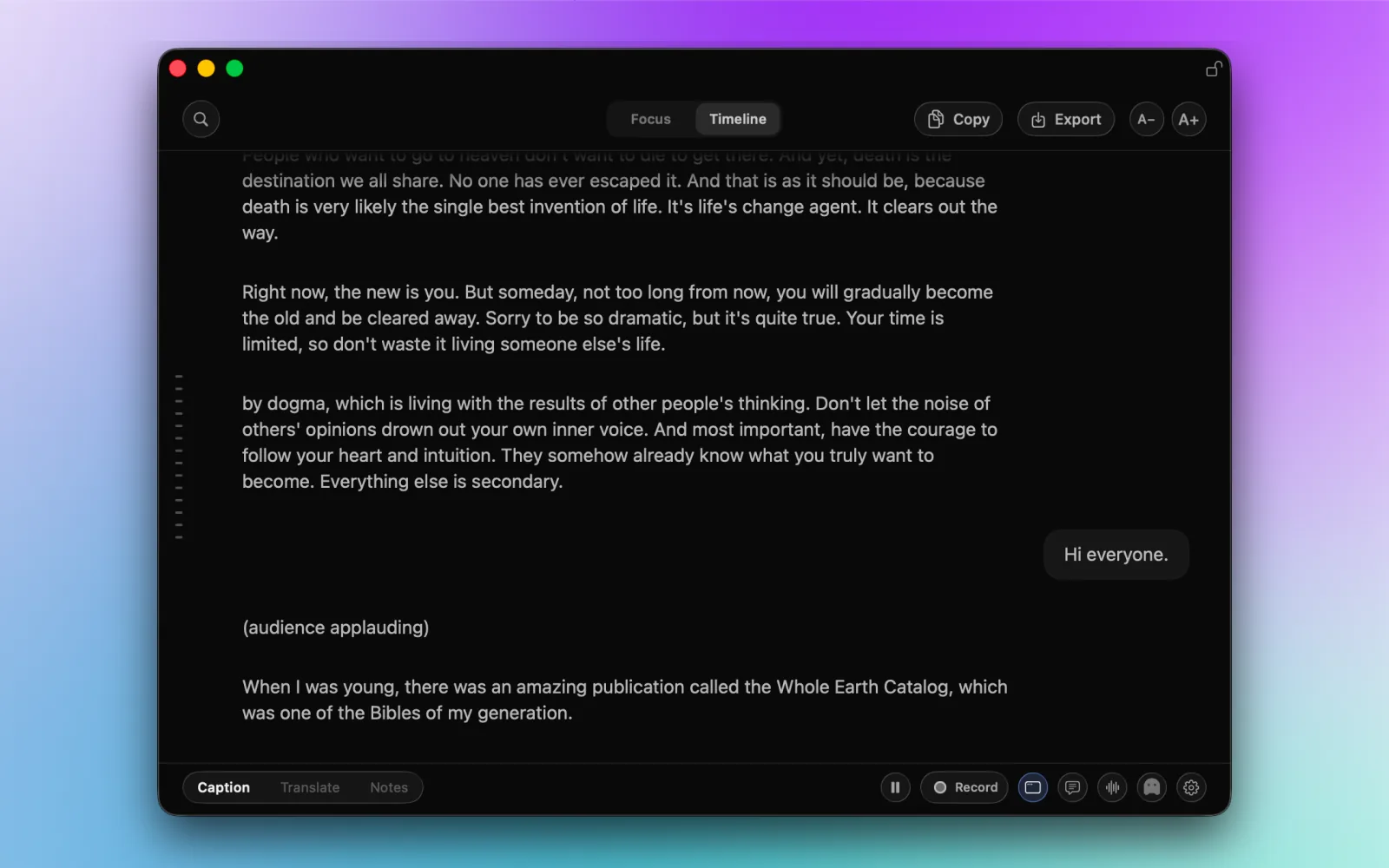
- Choose Open Caption Display in the menu bar, use the notch’s display control, or press the default shortcut ⌥⌘F.
- Move it by the title bar and resize it from an edge or corner.
- Use A− and A+ to change floating caption size.
- Use the lock-shaped Keep Window on Top control to keep captions above ordinary working app windows. This does not cover every macOS system surface.
Close is not Stop: closing Caption Display hides the window, but active captions continue. Use the caption start/stop control or ⌥⌘C to stop capture.
Focus mode
Select Focus at the top of Caption Display for a compact view that emphasizes the latest speech. It is a NotchLive reading view, not macOS Focus or a notification-blocking mode.
Choose your audio source separately: Apps & Media for Mac playback, My Voice for your microphone, or Everything for both. Switching to Focus does not change that choice or restart capture.
When you need earlier context, select Timeline. Pressing ⌘F while the window is active also switches to Timeline and opens search. Focus and Timeline browsing/search are included for free.
Live Timeline
Select Timeline in Caption Display to read back through the current caption run while new captions continue arriving.
- Scroll upward to recover a detail, then use Jump to Live to return to the newest captions.
- Use ⌘F to search finalized captions in the current run. It cannot find audio from before capture started.
- With Pro, use Copy for the full current transcript or Export for a TXT or Markdown snapshot.
Live context is not a saved meeting: an unrecorded Timeline stays in memory for the current run and is not restored after quitting. Opening Timeline does not start recording. Use Record with Pro when you intentionally want a retained session.
Audio sources
Settings uses clear audio-source names, while compact notch controls may use shorter labels. You can switch sources from either place.
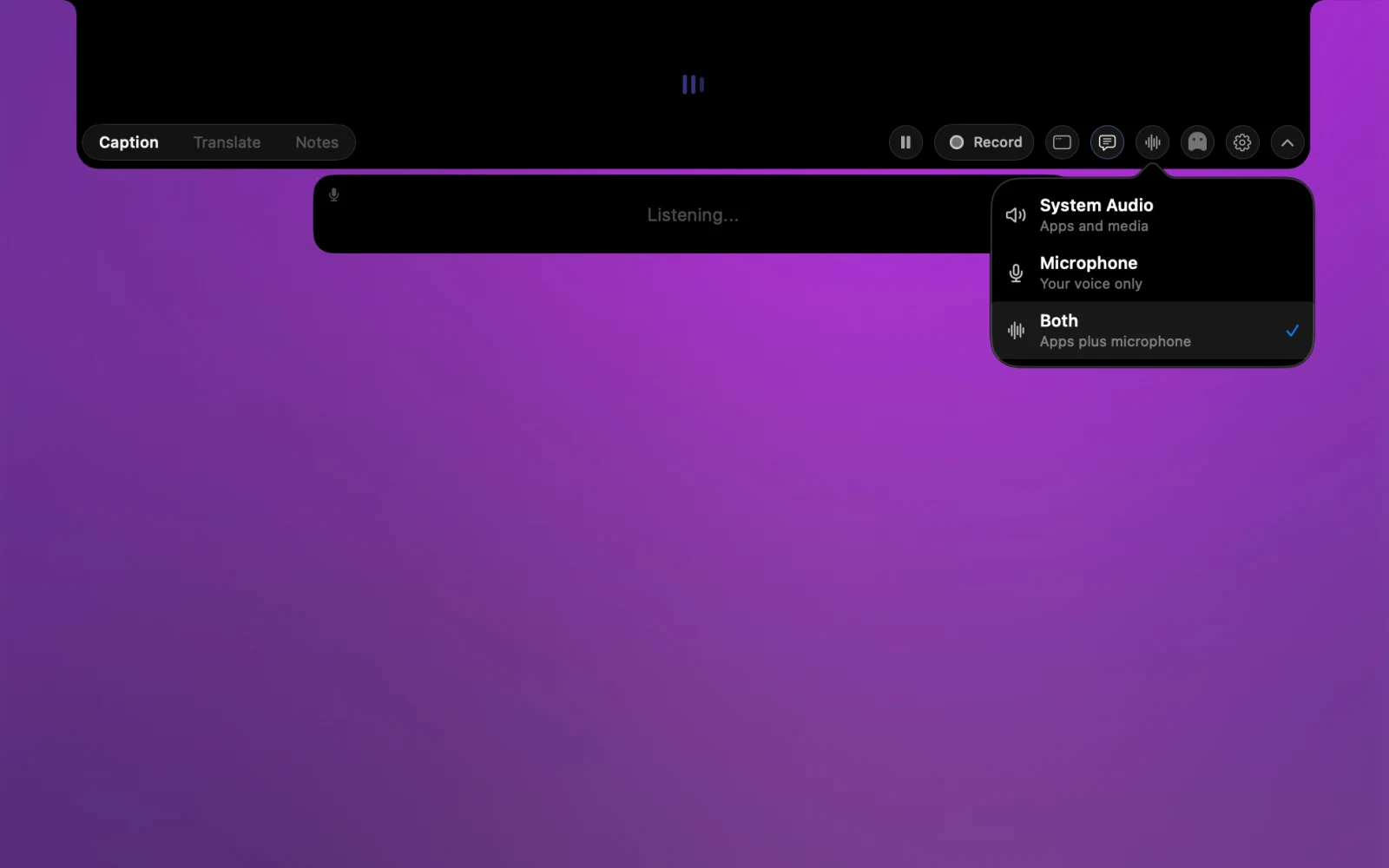
Apps & Media
Captions audio from Mac apps: meeting apps, browser video, podcasts, lectures, music, and other system audio. This is the best default for most people.
My Voice
Captions microphone speech only. Pick a Microphone Language if you mostly speak one language and want better microphone accuracy.
Everything
Captions app audio and your microphone together. Use it when you want your own speech and other speakers captured in the same workflow.
Translation Pro
Translate live captions on device with Apple Translation on compatible macOS and language pairs. For the full translation workflow, see the Mac live translation app.
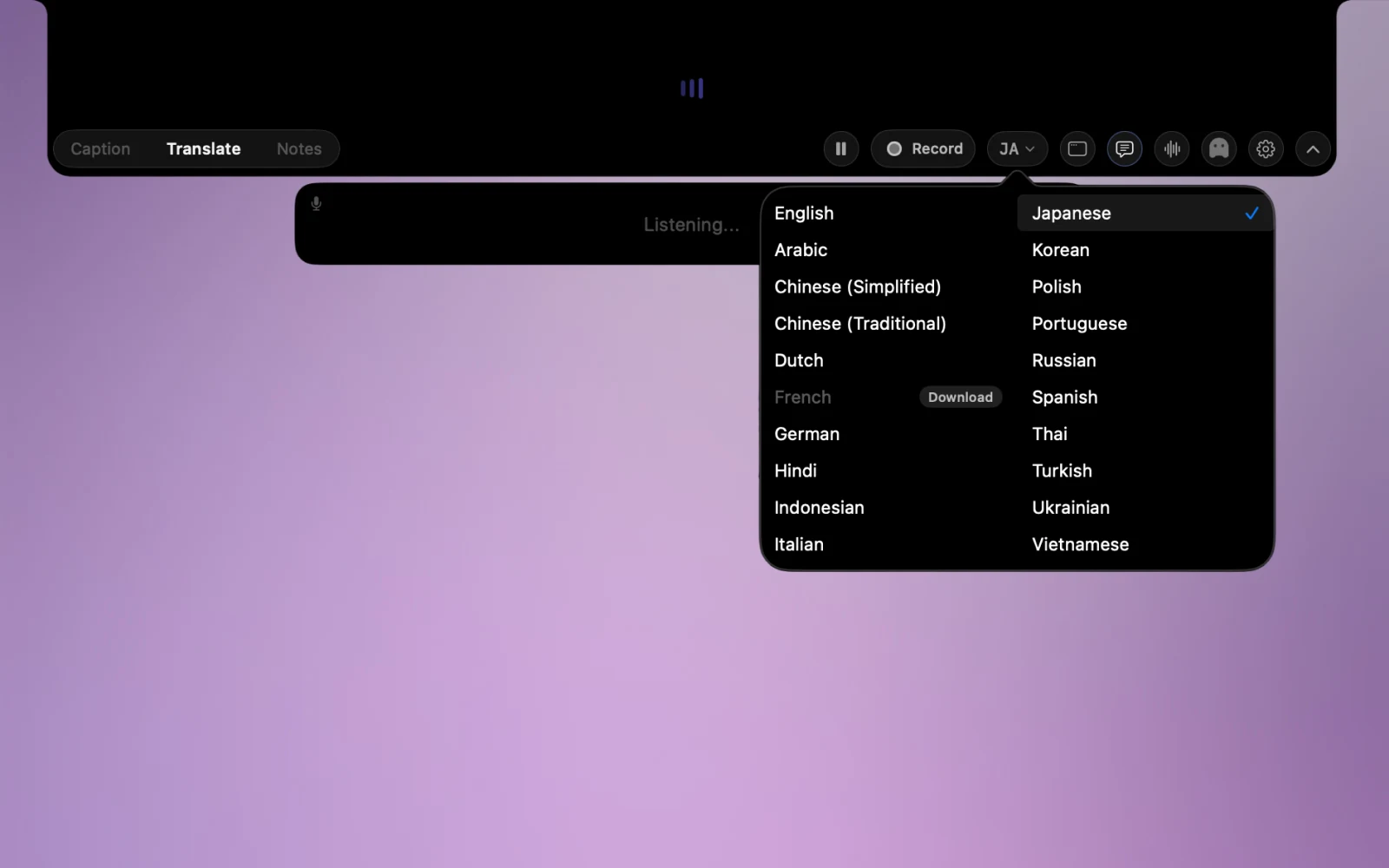
- Press ⌥⌘T to cycle caption modes, or choose Translate from the notch controls.
- Pick a target language from the language menu.
- Turn on bilingual captions if you want the original and translated text together.
- The first time you use a language pair, macOS may need to download Apple language support.
Dictation Pro
Dictation turns microphone speech into text in supported standard, non-secure Mac text fields. Recognition, Personal Dictionary rules, recent-history recovery, and insertion coordination stay on your Mac.
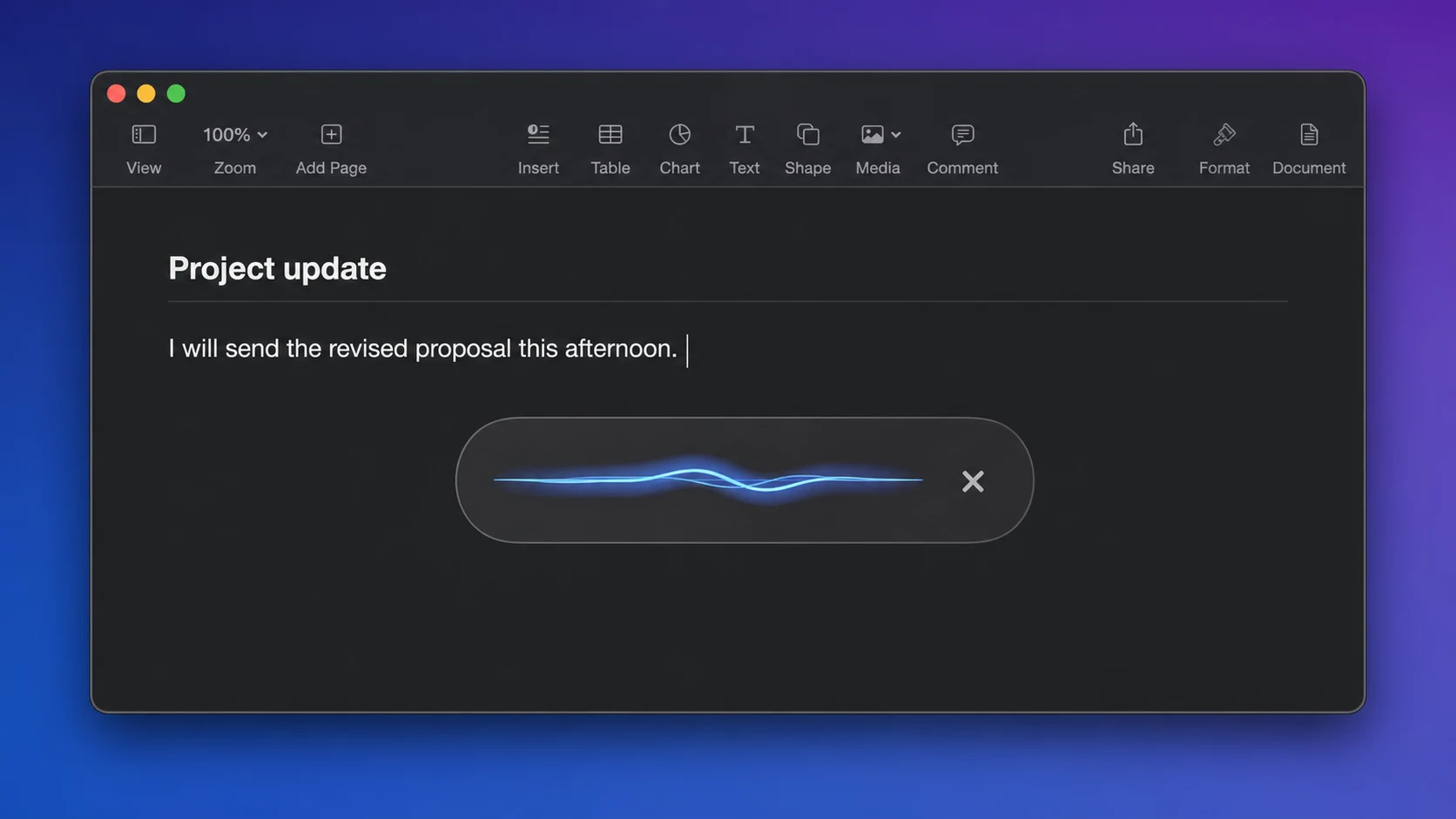
- Enable Dictation in Settings. Dictation requires Pro, microphone access, and macOS Accessibility permission so NotchLive can insert text into the focused control.
- Hold ⌥Space to dictate. Speak while holding the default shortcut, then release to insert. You can switch to press-once, press-again toggle behavior or record a different shortcut.
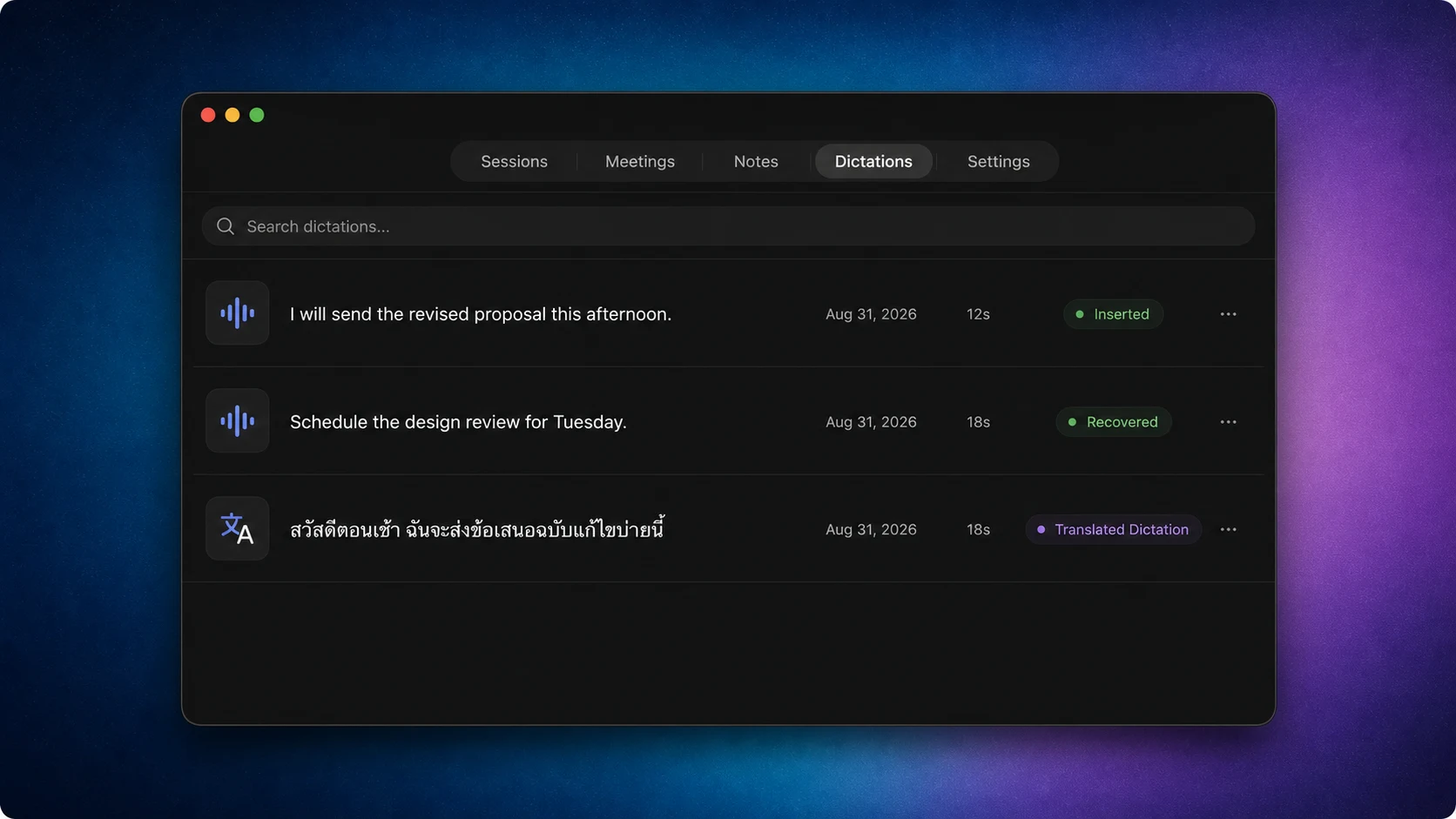
- Use ⇧⌥Space for Translated Dictation. On macOS 15 or later, NotchLive translates from the selected microphone language into the target language you set in Settings.
- Open Dictations for recovery. Search recent results, inspect original or translated text, and copy an entry if the original field could not accept insertion.
- Manage the Personal Dictionary. Add vocabulary for recognition context or deterministic spoken-to-written replacements for names, acronyms, and specialist terms.
Meeting Intelligence Pro
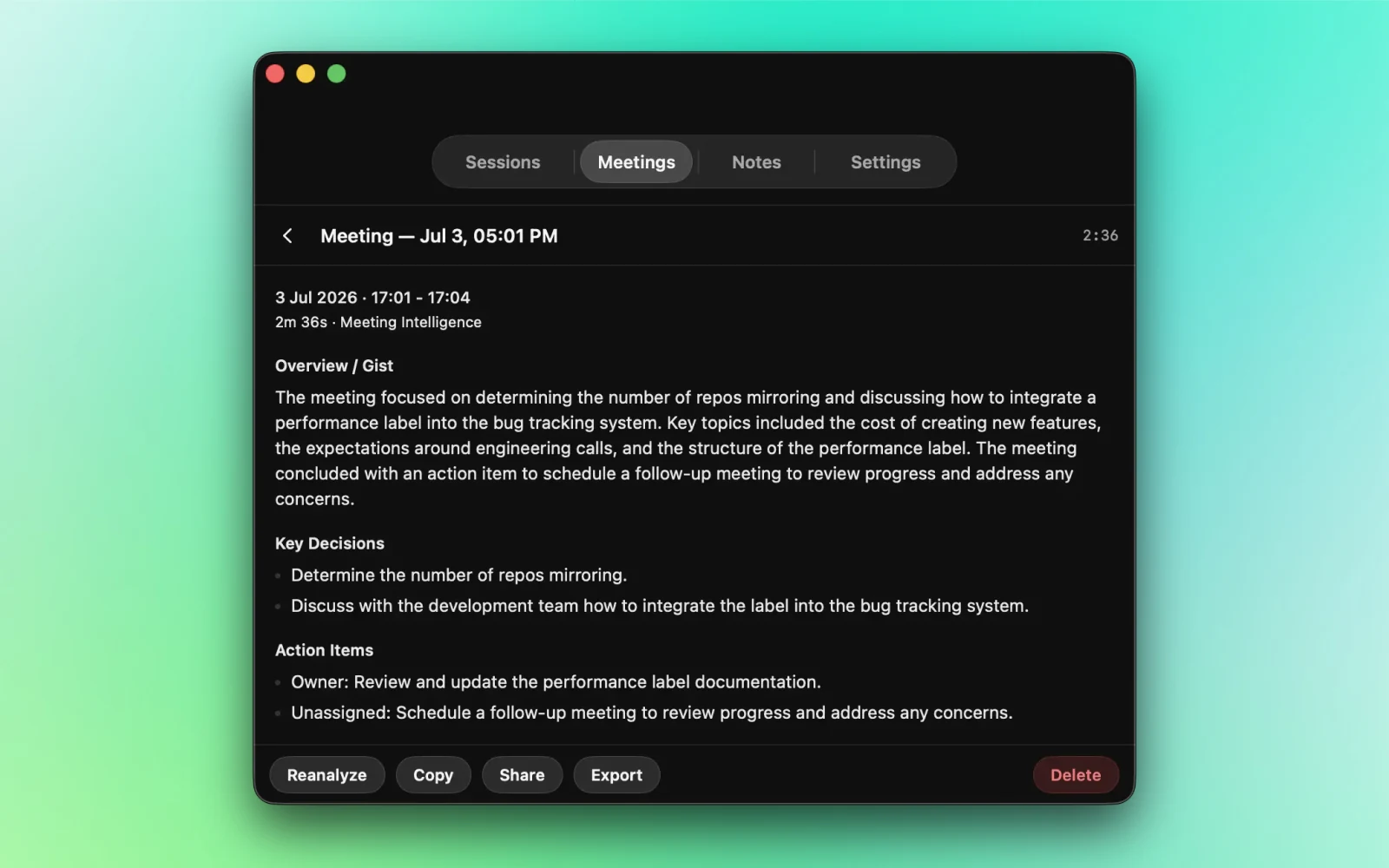
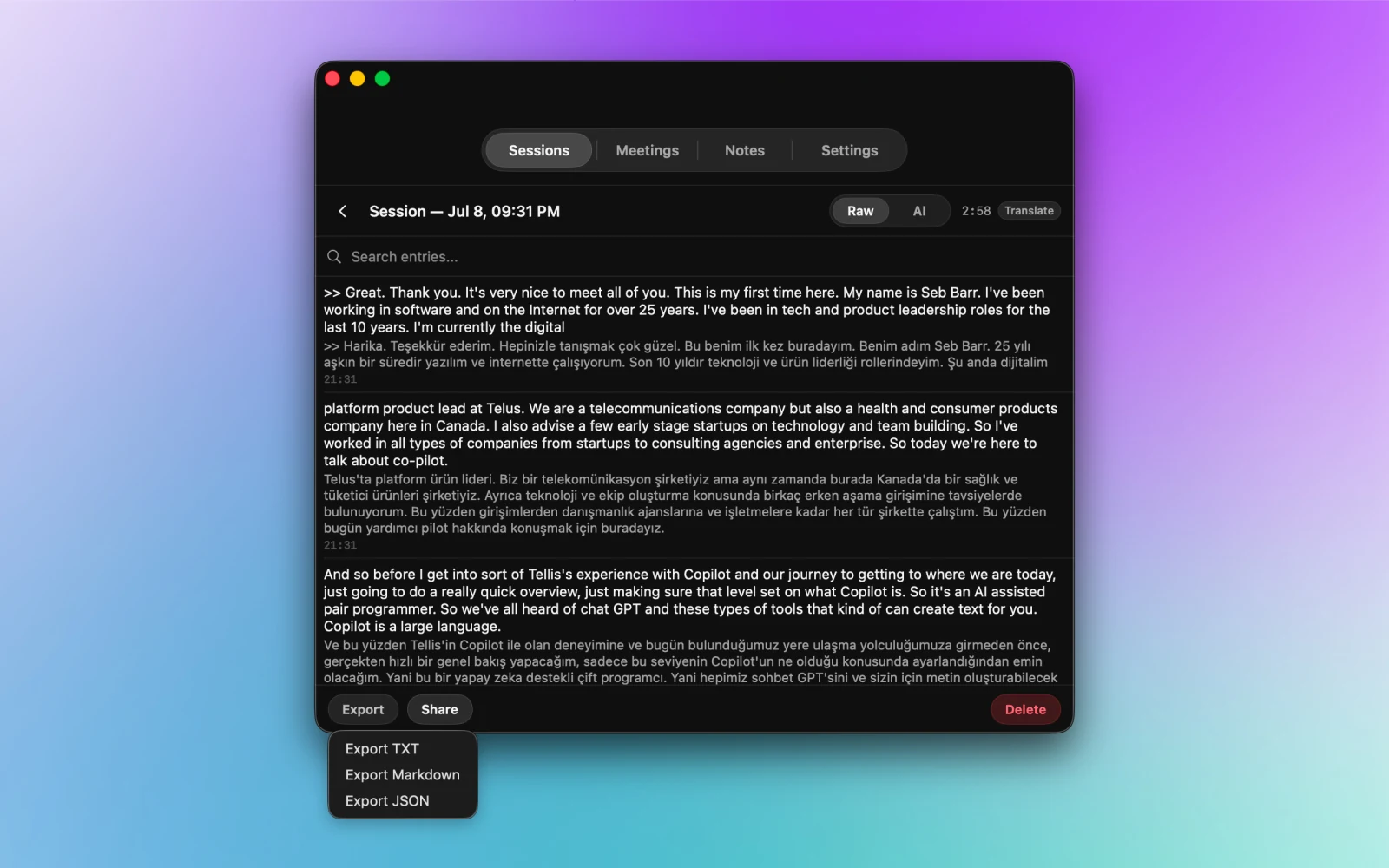
Live captions work without recording. Pro adds Meeting Intelligence on supported Macs when you choose to save a session: NotchLive can keep local transcripts, summarize caption evidence, and export TXT, Markdown, or JSON.
Meeting Intelligence
On supported Macs with Apple Intelligence enabled, NotchLive can turn captions into current focus, key points, open questions, action items, key moments, and saved meeting summaries.
Ask-to-record prompts
NotchLive can prompt when it detects a likely meeting or call. It does not automatically record meetings; recording still requires your action.
Export and share
Saved Meetings, Sessions, and Notes support native sharing, copy, export, and delete actions from the NotchLive window.
Voice Notes Pro
Voice Notes turns your microphone into a focused speech-to-text notepad. Keep the raw transcript, review an AI-cleaned version, translate the note, or send it onward to NotchPad.
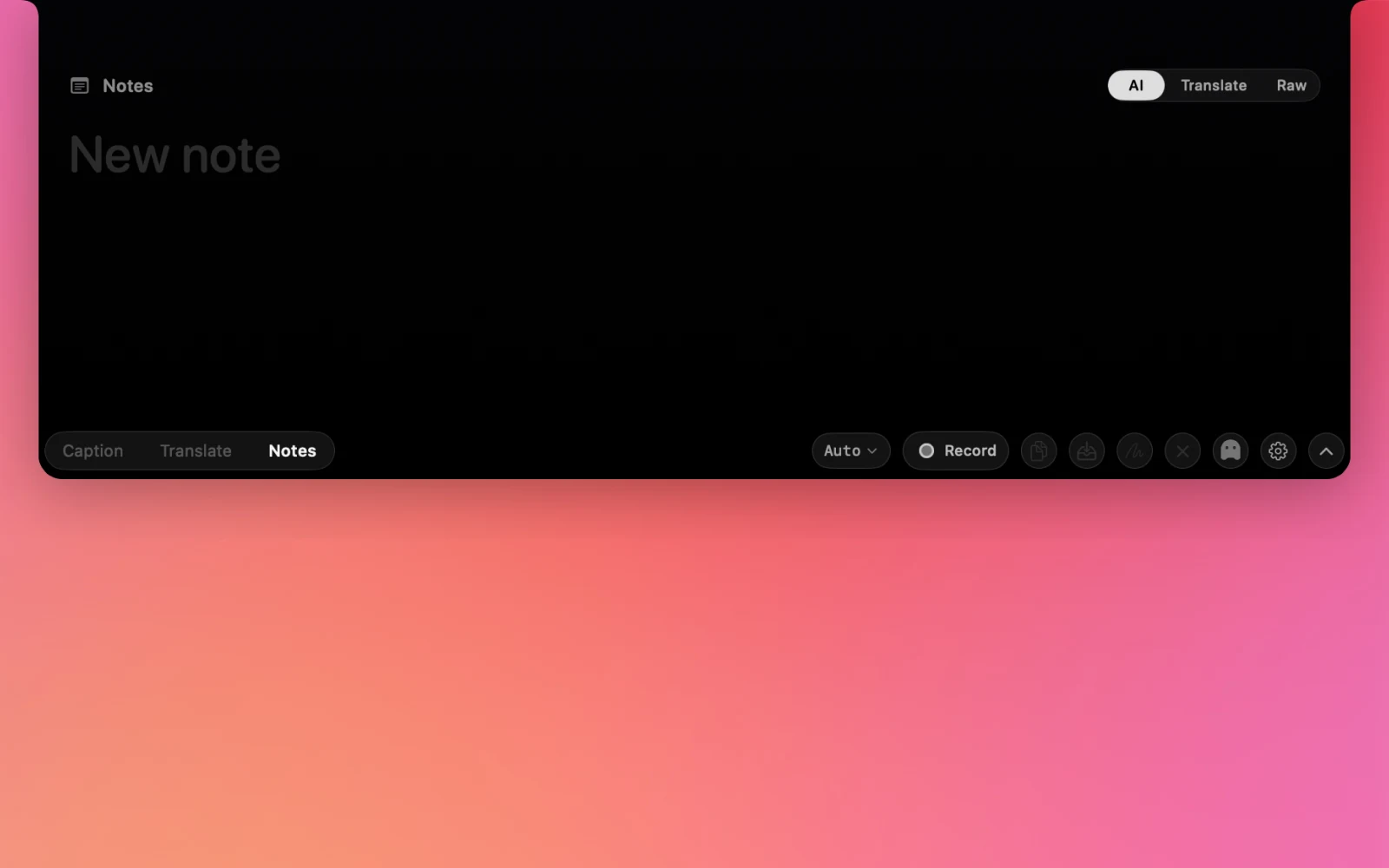
- Choose Notes from the NotchLive mode controls.
- Tap Record and speak naturally into your microphone.
- Switch between AI, Translate, and Raw views when reviewing the note.
- Save, copy, export, share, or send the result to NotchPad.
Ghost Mode
Ghost Mode hides NotchLive from screen sharing and screen recordings while captions keep running locally on your Mac.
Settings
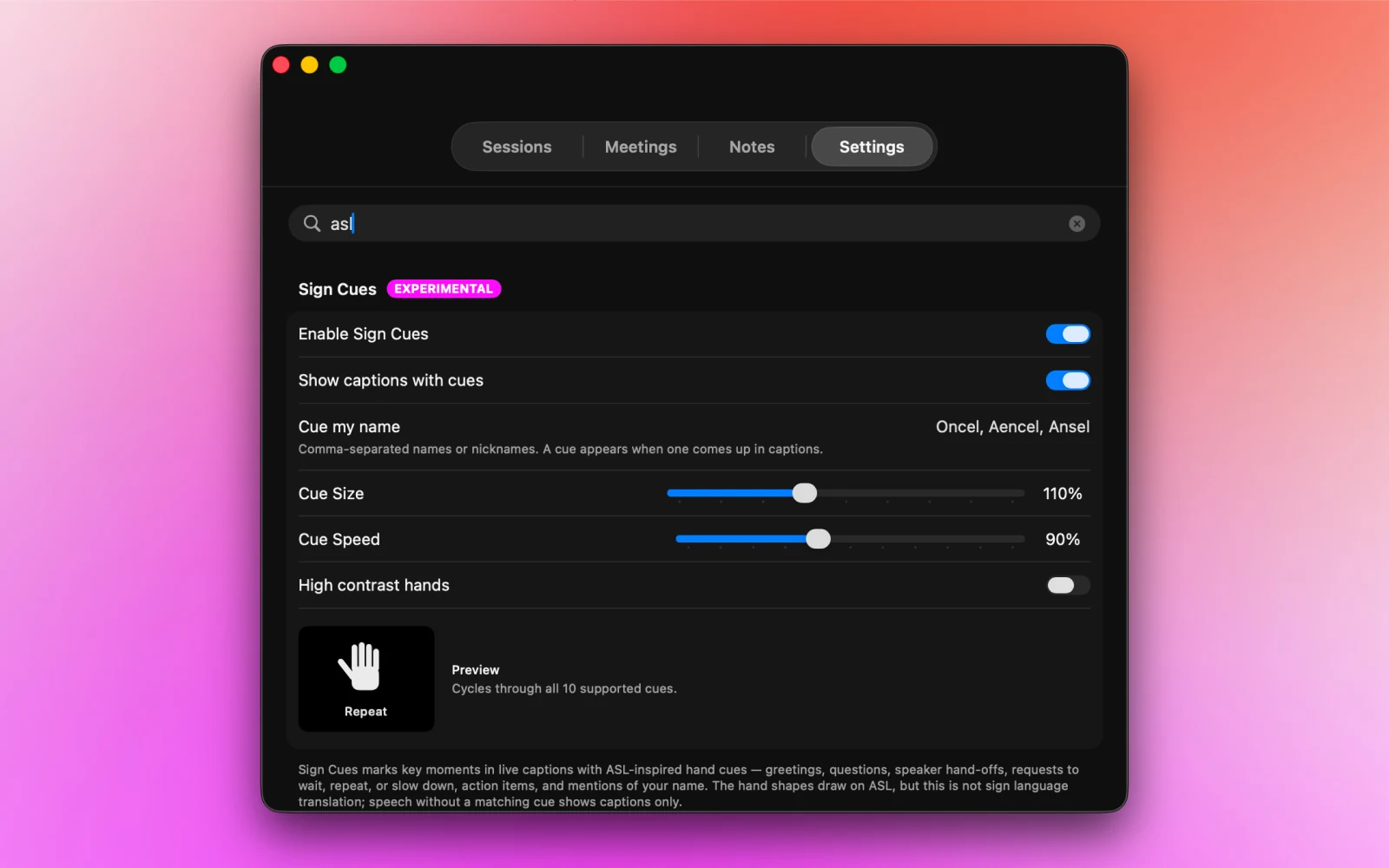
The NotchLive window has tabs for Sessions, Meetings, Notes, Dictations, and Settings. Settings are searchable, so you can jump straight to model setup, audio, translation, Dictation, Ghost Mode, shortcuts, license, diagnostics, or experimental Sign Cues.
Useful shortcuts
About Sign Cues: Sign Cues are ASL-inspired visual markers for selected caption moments. They are experimental and are not sign language translation or interpretation.
Pause after inactivity
NotchLive 1.9.2 can pause capture after 15, 30, or 60 minutes without audio activity, or stay active indefinitely with the default Never setting. Recordings and Voice Notes are never paused by this setting. Use Wake or Retry if the caption state reports that capture is sleeping or unavailable.
AI Connections and MCP Pro
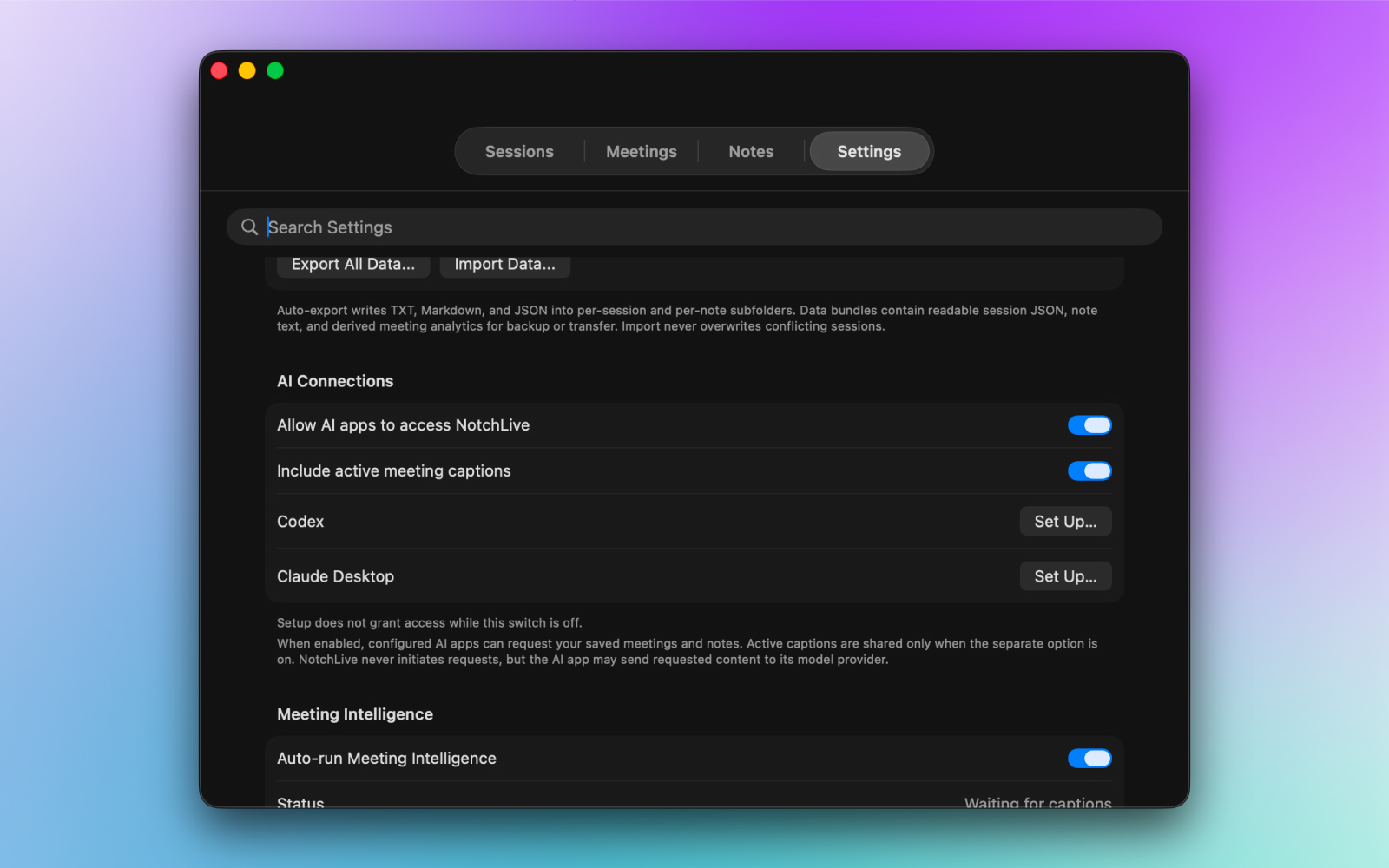
NotchLive 1.9.1 runs MCP through a dedicated headless helper with no Dock icon or app window. It can configure Codex or Claude Desktop directly, and it provides a standard stdio configuration for Hermes, OpenClaw, compatible Obsidian plugins, and other MCP-capable hosts.
Verify the connection
Start with: What NotchLive tools can you use?
Then try Search my NotchLive meetings for the decision about launch timing.
For the active Timeline, start captions in NotchLive and ask the client to follow each new finalized caption.
Translate one live stream into several languages
With active meeting captions enabled, ask: Follow my active NotchLive meeting. Translate every new finalized caption into Spanish, Japanese, Turkish, and Arabic. Keep the speaker label and continue until I tell you to stop.
Translation quality, language coverage, formatting, and latency depend on the connected model.
Know the boundary
Setup alone does not grant access while the main switch is off. The helper may initialize, but data calls return access_disabled and no meeting content. NotchLive exposes read-only tools and never sends a request by itself, but the connected host may send the text you request to its chosen model provider. Ollama and Qwen need an MCP-capable agent harness. See the full NotchLive MCP guide for the contract, host setup, data boundaries, and live workflows.
Troubleshooting
NotchLive asks to finish setup
Use the Finish Setup button. It opens the right setup step for missing app audio permission or a missing speech model.
NotchLive is missing from Screen Recording
Launch NotchLive once, open System Settings > Privacy & Security > Screen Recording, and add NotchLive from Applications if macOS does not list it. The app also shows a drag-to-add helper during setup.
Captions are inaccurate
Try Medium, Large Turbo Compact, or Large Turbo for accents, dense speech, or technical vocabulary. If you mostly speak one language, set Microphone Language instead of Auto. Also check that the selected audio source matches what you want NotchLive to caption.
The Mac runs hot
Large models use more CPU, memory, and disk space. Switch back to Small or Base if you prefer lower resource use.
Audio does not return after the Mac wakes
NotchLive 1.9.2 rebuilds system-audio and microphone capture after macOS sleep. If recovery cannot finish, use Retry audio capture. Permission failures require restoring the requested macOS permission before retrying.
A speech model needs repair
Use Repair when NotchLive reports a missing or changed model file. The replacement is verified before use, and an interrupted repair keeps the model in a recoverable state.
Your MCP host cannot see NotchLive
For Codex or Claude Desktop, make sure the app was installed before you clicked Set Up, then run Set Up again and reopen the client. For another host, copy the current standard stdio configuration from NotchLive Settings. Turn on Allow AI apps to access NotchLive; live Timeline requests also require the separate Include active meeting captions switch and an active caption session.
Start simple, then turn on the extras when you need them.
Apps & Media is the right default for calls, videos, and lectures. Switch to Everything when you want your own microphone included, record only when you want a saved meeting record, and enable AI Connections only when you want a chosen client to read NotchLive context.
Related Mac caption guides
Caption Zoom calls on Mac, live captions for hearing accessibility on Mac, best live caption apps for Mac, and NotchLive vs Apple Live Captions.