 NotchLive
Meetings and calls
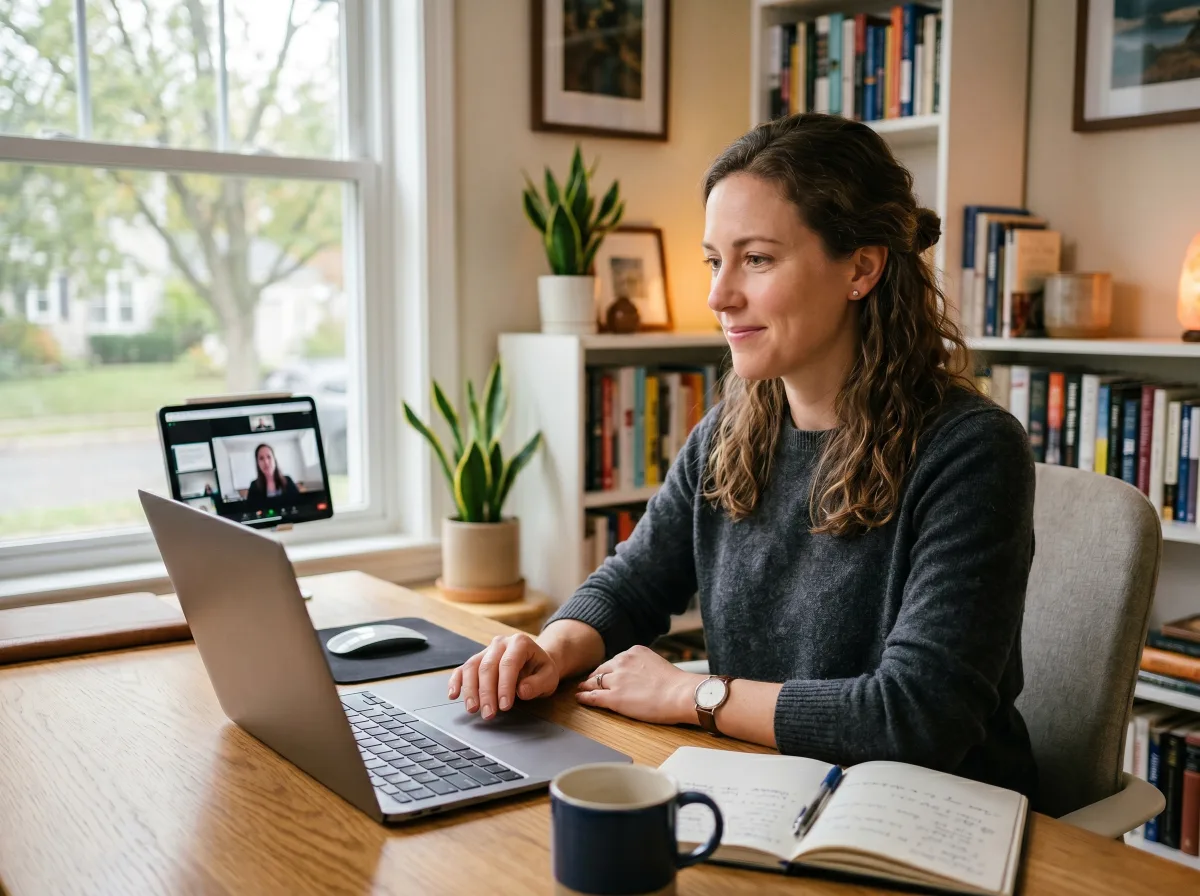
Follow Zoom, Google Meet, Microsoft Teams, customer calls, standups, interviews, and remote training sessions.
Need translated speech in Zoom, Google Meet, Teams, or another Mac app? NotchLive captions spoken system audio or microphone speech on your Mac, then Pro translates supported captions without adding a meeting bot.
Live captions are free forever. Translated speech, session history, Voice Notes, and export require Pro.
NotchLive uses on-device Whisper speech recognition to generate live captions from audio playing in Mac apps and browser tabs, microphone speech, or both. After downloading your chosen Whisper model, use it with Zoom, Google Meet, Microsoft Teams, videos, lectures, podcasts, and other spoken audio.
Let Whisper identify the spoken language when you do not know it in advance.
Choose a known speech language before starting captions or configuring a supported translation.
Representative languages are shown. Recognition quality varies with the Whisper model, audio quality, accent, and speaking conditions. If you only need captions without translation, explore live captions for Mac apps and audio.
NotchLive Pro translates live captions—not documents or typed messages—using Apple Translation on macOS 15 or later. English does not have to be the source language: choose a supported spoken language, then select an available target language for the captions.
| Source language | Choose one of the supported translation languages. |
|---|---|
| Target language | Select a target that Apple Translation supports for the chosen source. |
| English required | No. Supported non-English source-to-target routes can also be used. |
| Pair availability | NotchLive checks Apple Translation support for the selected source and target on your Mac. |
| Requirements | NotchLive Pro, macOS 15 or later, and any required language downloads. |
In NotchLive 1.11.1, Faster updates shows translations while you speak. Words may change as more speech arrives, and it may use more battery. This is the default for new users and is always used in compact view and the notch widget. In the full captions window, More context waits for each caption to finish before its translation appears. Neither mode promises instant translation; timing depends on the language pair and workload. Read the release notes.
Examples are illustrative, not a complete compatibility matrix. Apple Translation checks the selected source-to-target pair and any required language download on your Mac.
NotchLive Pro can expose each new finalized caption and its current speaker label through a separate, opt-in, read-only local MCP connection. Codex or Claude follows that active Timeline and translates every new turn into all the languages you request—at the same time and for as long as you ask it to continue.
| What you enable | In NotchLive Settings, turn on AI Connections, connect Codex or Claude Desktop, and separately enable active meeting captions. |
|---|---|
| What you ask | Name the languages, the output format, and whether the AI client should preserve the original speaker labels. |
| What NotchLive provides | Finalized caption turns, the active Timeline revision, and reviewed speaker context. Raw audio and partial captions stay out of MCP. |
| What the AI client does | Checks the Timeline for each new revision, translates every newly finalized turn into all requested languages, and keeps going until you tell it to stop. |
| Where translations appear | In the Codex or Claude conversation—not inside NotchLive’s native caption bar. |
| Language coverage | There is no fixed NotchLive MCP target list. Ask for the languages you need; coverage and quality depend on the connected model. |
This extended-language workflow runs in Codex or Claude, which may send requested caption text to its model provider. It is separate from NotchLive’s 20 built-in, on-device Apple Translation languages.
Most translation tools are built for text, documents, or full meeting platforms. NotchLive is different: it focuses on spoken audio. If speech is coming through your Mac, NotchLive can caption it, and Pro can translate supported captions live.
For an answer-first walkthrough, see how to translate video audio on Mac in real time across YouTube, webinars, livestreams, and local media players.
Follow Zoom, Google Meet, Microsoft Teams, customer calls, standups, interviews, and remote training sessions.
Caption and translate spoken content from browsers, course videos, livestreams, podcasts, and recorded material.
Use mic mode for in-person conversations, practice sessions, voice notes, and quick speech-to-text workflows.
NotchLive works at the Mac audio layer, so it can help with the apps and sources you already use instead of asking everyone to move into a new meeting workspace.
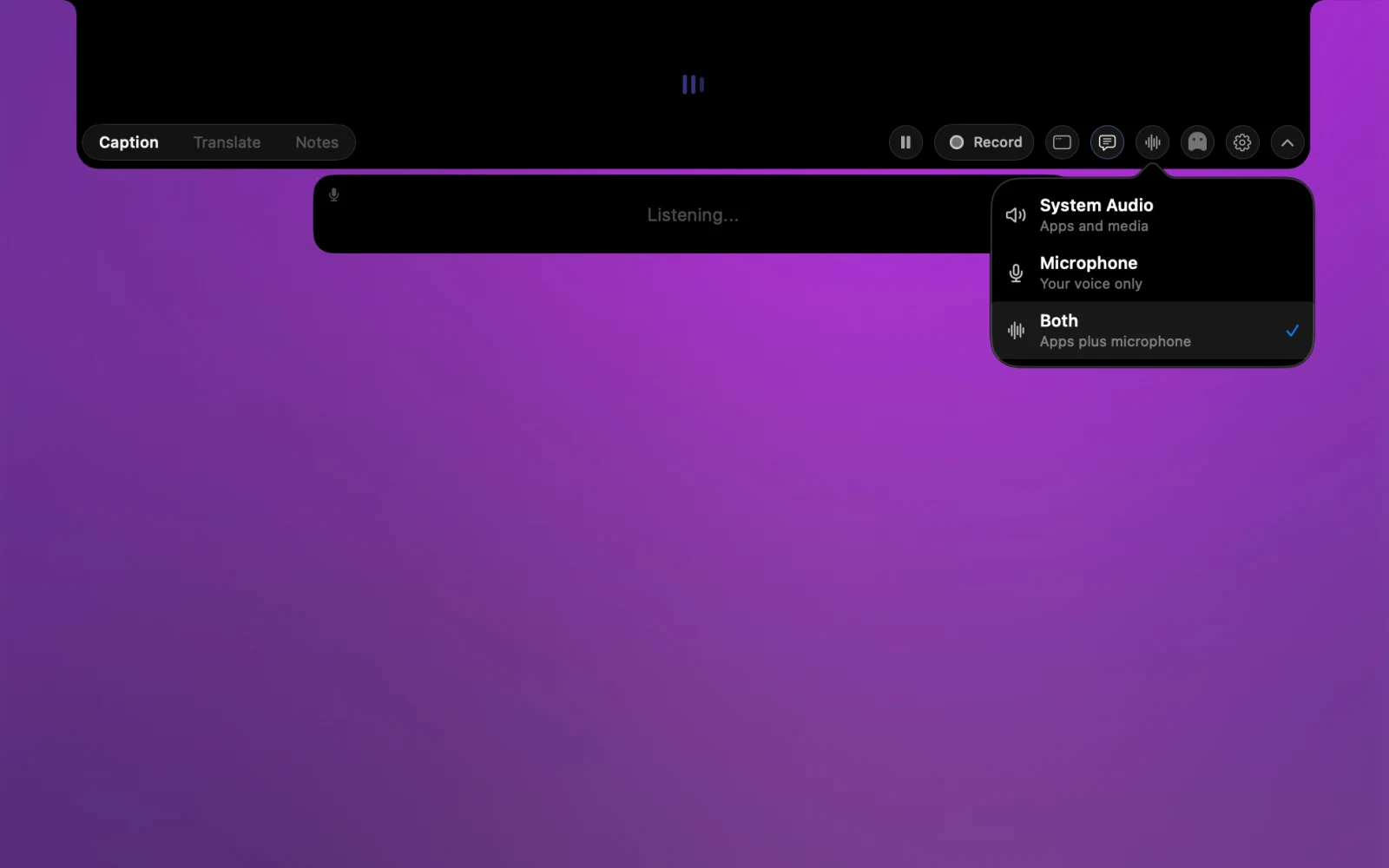
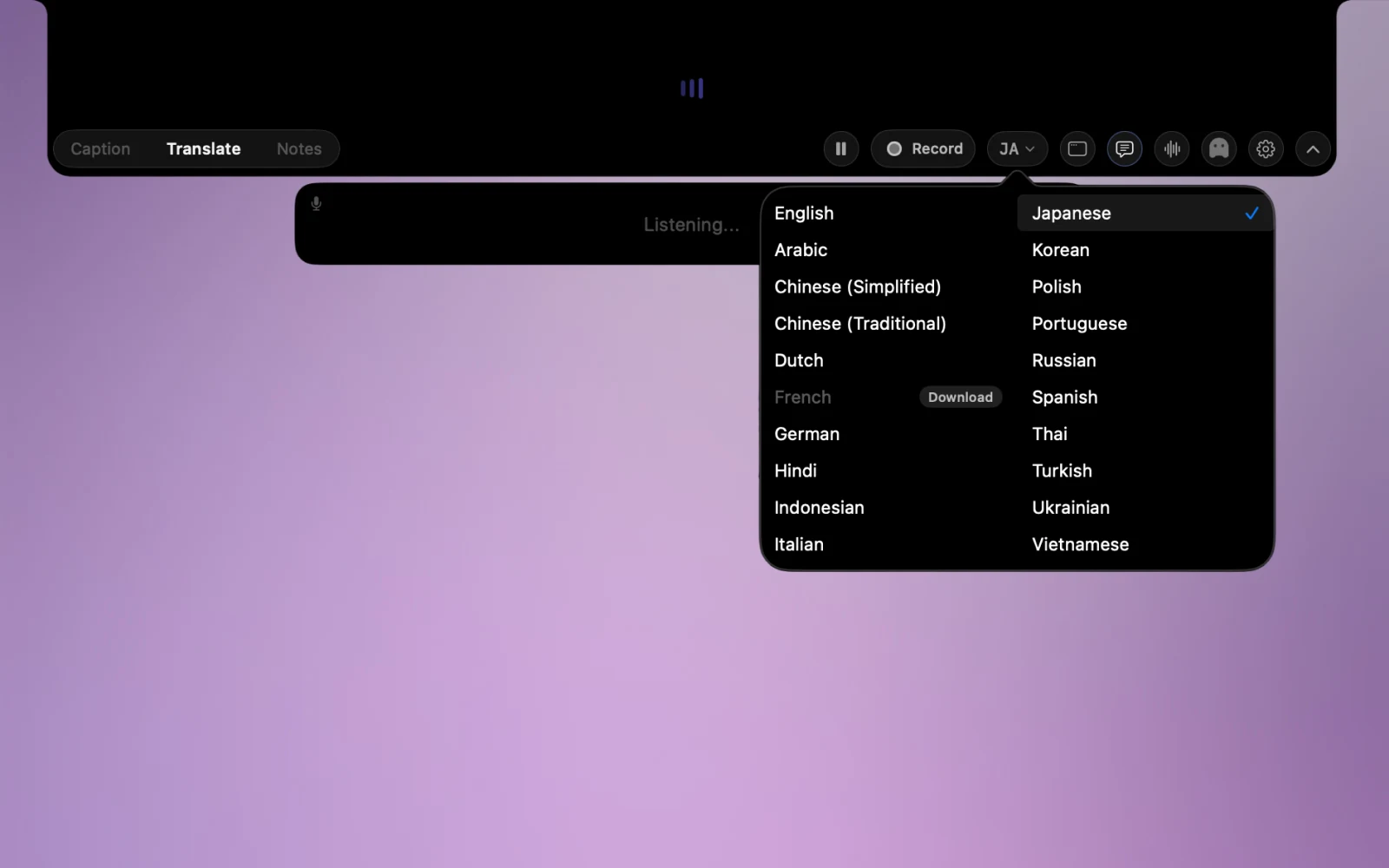
NotchLive listens to system audio, microphone audio, or both, depending on your selected mode.
You can use it with existing Mac apps instead of changing meeting tools.
Whisper AI speech recognition runs on-device after the model is downloaded.
NotchLive does not need to upload meeting audio to its own cloud transcription service.
NotchLive Pro uses Apple Translation to provide translated speech where supported by macOS and installed language packs.
You can read translated captions during calls, videos, and spoken audio workflows.
Pro can keep session transcripts, export text, and turn speech into Voice Notes.
Use the output for personal follow-up notes when recording/export is appropriate.
| What matters | Meeting translator platform | NotchLive |
|---|---|---|
| Works across Mac apps and browser tabs | Limited to supported meeting workflows or integrations | Captions capturable speech from Mac apps, browser tabs, and the microphone |
| No bot joins the meeting | May require a bot or supported integration | Runs on your Mac with no extra participant |
| Speech recognition | Processing depends on the vendor | On-device Whisper after model download |
| Live caption pricing | Pricing and limits vary by vendor | Unlimited live captions are free |
| Translation and team access | Usually tied to platform accounts or plans | One-time Pro unlock; Team Packs use shared lifetime license keys |
Apple Live Translation is built into selected Messages, FaceTime, and Phone experiences. NotchLive is a captions-first Mac app for capturable speech from Zoom, Google Meet, Microsoft Teams, browser tabs, videos, webinars, lectures, podcasts, and microphone conversations.
NotchLive recognizes speech on-device with Whisper after model download, then uses Apple Translation for supported live caption routes on compatible macOS setups.
Read translated captions during fast customer calls, roadmap reviews, support sessions, and distributed team conversations.
Use captions and translation as a safety net for accents, technical terms, noisy audio, or rapid speech.
Caption lectures, interviews, webinars, and spoken material locally, then export notes only when you choose to.
NotchLive uses on-device Whisper AI for speech recognition. Pro translation uses Apple Translation where supported by macOS and installed language packs. Some language setup may require initial downloads.
No. NotchLive is for spoken audio: meetings, videos, microphone speech, webinars, podcasts, lectures, and voice notes. It is not a document translator or interface translator.
Yes. In Translate mode, NotchLive can show the original caption and translated caption together, so you can follow both languages during the same call, video, or interview.
NotchLive includes 20 built-in Apple Translation languages. Through an opt-in, read-only local MCP connection, Codex or Claude can follow finalized active captions and translate the same live stream into the languages you request. Translation coverage and quality depend on the connected model.
Yes. NotchLive captions audio already playing on your Mac, so it can work with Zoom, Google Meet, Microsoft Teams, browsers, media players, and other apps that output speech.
No. NotchLive runs on your Mac. It does not join calls as a participant, announce itself in the meeting, or provide a cloud meeting workspace.
Live captions are free forever. Pro adds translated speech, saved session history, transcript export, Voice Notes, and saved notes.
Start with free live captions. Upgrade once if you need translated speech, transcripts, Voice Notes, and export.