 NotchLive
Search the reviewed record
List and search saved meetings, then read one meeting with participant labels, analytics, and an optional reviewed transcript.
Give an MCP-capable agent read-only access to finalized captions as the active Timeline changes, then translate the conversation, maintain a live brief, track decisions, or prepare confirmed work. Context Contract v1 also covers saved meetings, reviewed transcripts, Meeting Analytics, and Voice Notes. MCP is included with NotchLive Pro.
AI Connections is off by default. Enable saved meetings and notes first, then choose whether the active Timeline is also available. Configuring a host is not authorization: every request rechecks the main access control and the separate active-caption control.
Let the client find reviewed meetings and transcripts, Meeting Analytics, and Voice Notes. Use it to retrieve a decision, compare meetings, or draft a follow-up from saved work.
Once AI Connections is on, a second off-by-default control makes the Timeline currently visible in NotchLive available. Leaving it off limits access to saved content.
NotchLive does not push a meeting into an AI service or start a conversation on its own. The connection to NotchLive is local, but the MCP host may send requested content to its chosen model provider according to that host's settings and policy.
Nothing is exposed before you enable the local server in NotchLive Settings.
Saved meetings and notes become available with AI Connections. If you also need the active Timeline, turn on its separate caption control.
The dedicated headless helper can initialize without opening the NotchLive interface. It exposes only read-only tools; when access is off, data calls return an explicit error and no meeting content.
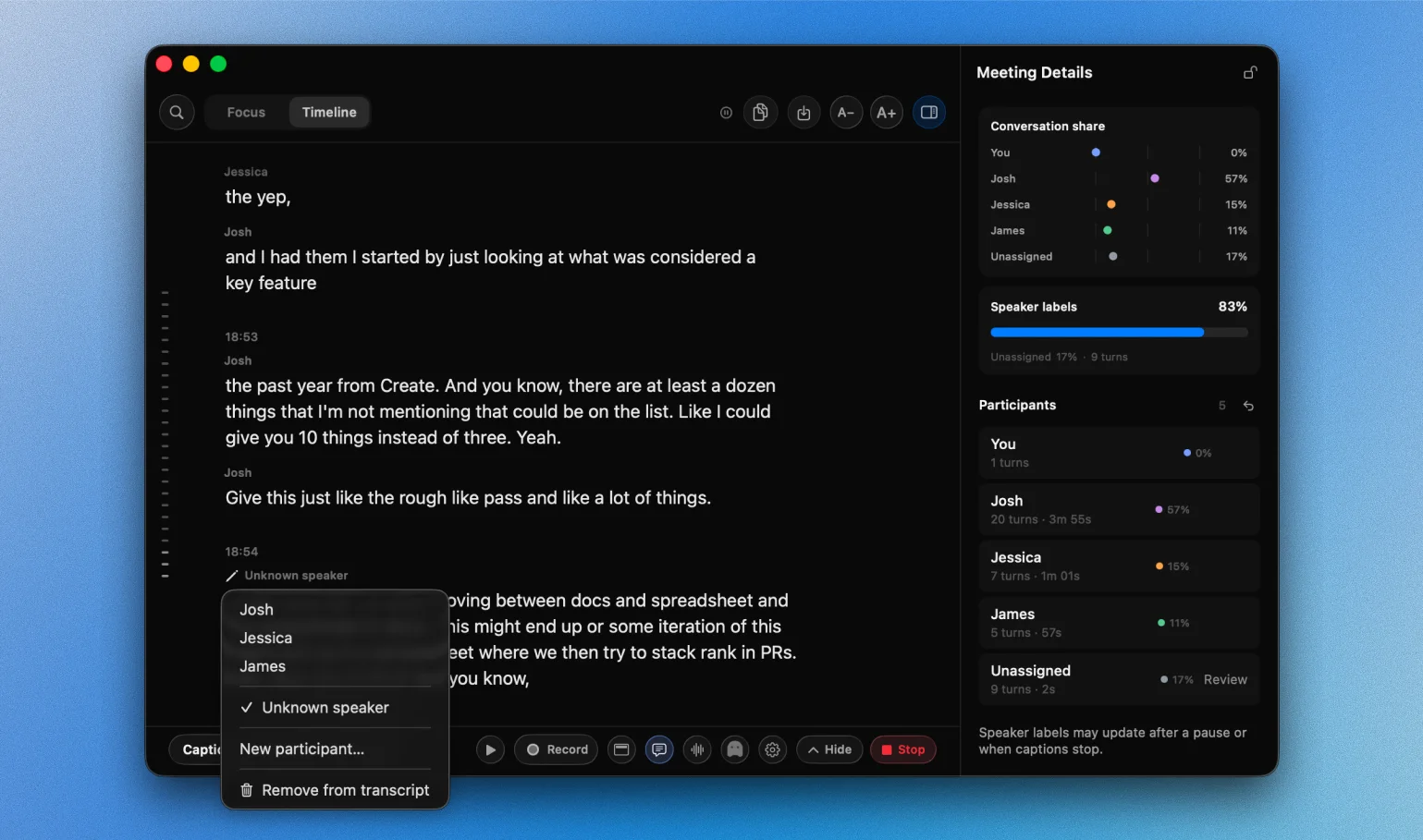
NotchLive treats automatic speaker attribution as evidence, not identity. Rename, merge, reassign, split, or leave speech unresolved. Your reviewed participant map, rather than an automatic acoustic guess, is the meeting structure used by analytics, exports, saved output, and MCP results.
See how speaker diarization worksThe server exposes narrow retrieval tools, not control over NotchLive or your Mac.
List and search saved meetings, then read one meeting with participant labels, analytics, and an optional reviewed transcript.
List saved Voice Notes and read the note you ask for without granting access to unrelated files.
Request only revisions newer than the last result, receive finalized captions and participant-review changes, and reconnect to the same run. An unchanged revision means keep polling; an explicit terminal state means the meeting ended.
NotchLive returns structured meeting context with versioned envelopes, stable tool names, explicit status and error codes, and cursors for incremental reads. The contract defines what the agent receives while leaving the agent free to reason about what the meeting means.
Saved meetings, reviewed transcripts, participant identity provenance, Meeting Analytics, Voice Notes, and live Timeline results use the same versioned contract.
Pass since_revision to receive only newer events. unchanged means the meeting is still live; a terminal result remains available for ten minutes so a reconnecting agent can finish its work.
Errors such as access_disabled, live_access_disabled, pro_required, and not_found let the host respond honestly instead of guessing why data is unavailable.
NotchLive configures Codex and Claude Desktop directly from AI Connections and migrates exact NotchLive 1.9.0 entries to the new helper. For other MCP-capable hosts, Settings provides a copyable standard stdio configuration that launches the signed helper inside NotchLive.app.
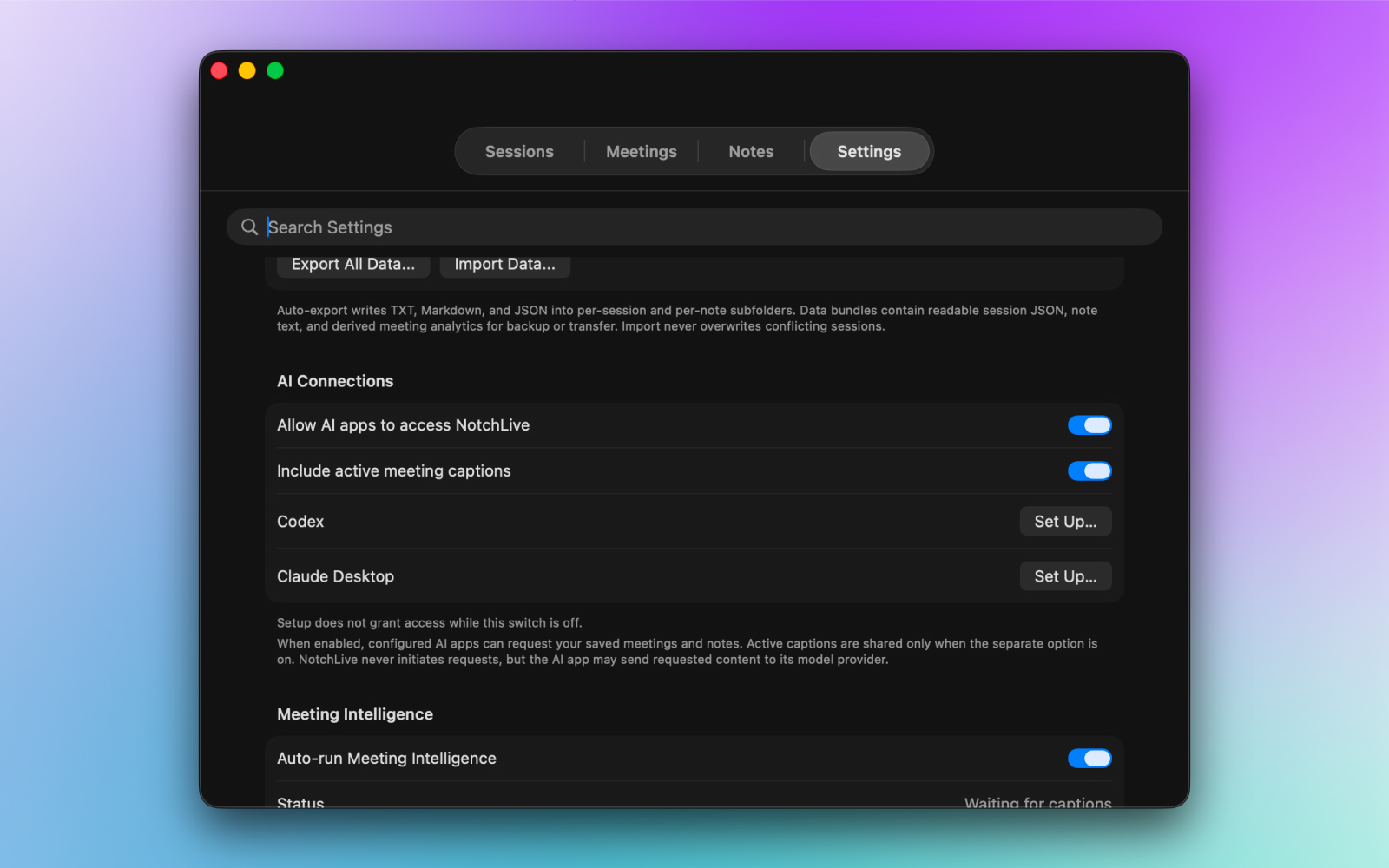
Use Set Up for Codex or Claude Desktop. For Hermes, OpenClaw, a compatible Obsidian plugin, or another stdio MCP host, copy the standard configuration from NotchLive Settings.
The configuration runs /Applications/NotchLive.app/Contents/Helpers/NotchLiveMCP. It has no Dock icon or app window and does not replace the normal NotchLive interface.
Enable saved NotchLive context with the main switch. Separately enable active meeting captions only when you need the live Timeline.
Reopen the host if its tool list does not refresh, then ask: What NotchLive tools can you use?
Ollama and Qwen need an MCP-capable host or agent harness; the model runtime alone does not launch MCP tools.
No. AI Connections starts off and NotchLive never initiates a request. A configured host may initialize the local helper, but every data request is denied until you enable access. Once enabled, the host may send requested content to its chosen model provider.
The host keeps its local configuration and may still initialize the helper, but every data tool returns an explicit access_disabled error and no meeting data until you enable AI Connections again.
No. The NotchLive MCP server is read-only and exposes no write, delete, rename, recording, microphone, network, or model tools.
No. Active Timeline access has its own separate, off-by-default control.
Yes. When active Timeline access is enabled, an MCP-capable host can request each finalized caption and ask its chosen model to translate the same stream into multiple requested languages. This workflow is separate from the 20 languages built into NotchLive through Apple Translation.
No. NotchLive can configure the installed Codex or Claude Desktop app directly from Settings.
Install and open the desktop client, then open NotchLive Settings, find AI Connections, and click Set Up beside Codex or Claude Desktop. Turn on Allow AI apps to access NotchLive, separately enable active meeting captions only if needed, and reopen the AI client so it can refresh its tools.
Yes when the application or agent harness can launch a standard local stdio MCP server. Copy the configuration from NotchLive Settings. Ollama and Qwen are model runtimes rather than MCP hosts, so they need an MCP-capable harness such as an agent app or compatible Obsidian plugin.
Use NotchLive for live captions, then explicitly connect an MCP-capable host when you want parallel translations, a live brief, action notes, or reviewed meeting context.