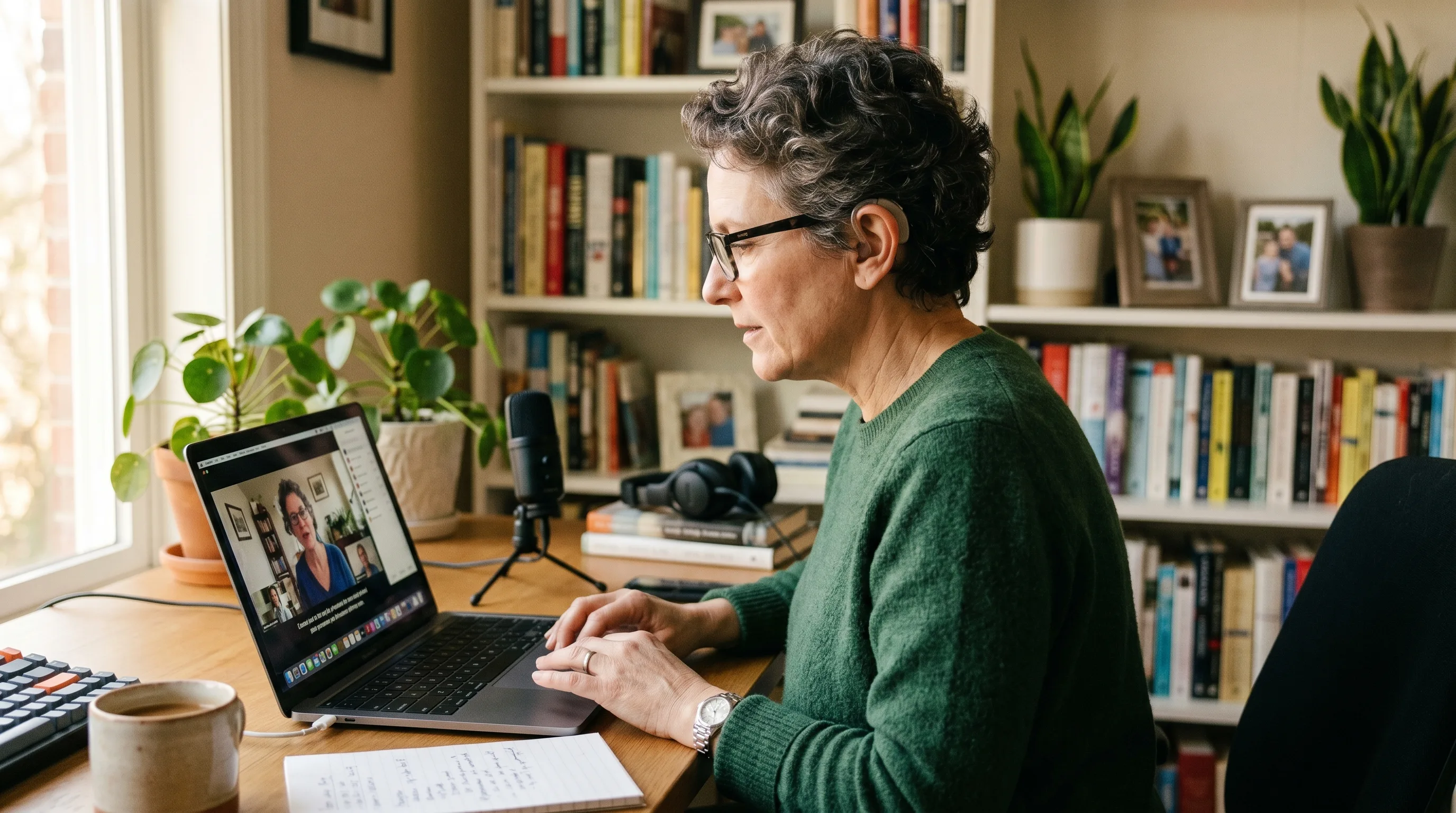
NotchLive gives your Mac private live captions for the speech already playing through your apps: Zoom, Google Meet, Microsoft Teams, videos, podcasts, lectures, browser audio, and microphone speech. It is built for hearing accessibility and everyday listening support, without adding a meeting bot or uploading audio to a captioning service.
Important: NotchLive is not a medical device and does not replace professional hearing, workplace, school, or accessibility advice. It is a practical Mac captioning tool that can make speech easier to read and follow.
Hearing accessibility is not limited to one meeting app. Speech can come from a browser tab, a lecture recording, a podcast, a training video, a customer call, or someone speaking into the microphone. If captions only work in one app, they disappear as soon as the audio moves somewhere else.
NotchLive listens at the Mac level, so the same caption workflow can follow you across apps. That makes it useful for hard-of-hearing users, noisy rooms, fast meetings, second-language listening, and anyone who understands speech better when it is readable.
What NotchLive captions
NotchLive can listen to system audio, your microphone, or both together. That makes it useful across common hearing accessibility situations:
Zoom, Google Meet, Microsoft Teams, and other video calls.
Lectures, webinars, courses, and recorded training videos.
YouTube, browser audio, podcasts, and media players.
Microphone speech for in-person conversations, practice, or quick voice notes.
Calls where you need captions for yourself but do not want to change the meeting setup.
Private captions without a meeting bot
Some transcription tools join as a visible meeting bot. That can be useful for team notes, but it is often too heavy when you only need personal captions to follow the conversation. NotchLive runs on your Mac, captions locally after model download, and does not enter the participant list.
If you only need captions for yourself, that no-bot workflow matters. Other people do not need to install anything, change host settings, or approve another attendee just so you can read what is being said.
Notch display vs floating windows
Traditional caption tools often use a floating window. That works, but it can cover slides, chat, or the person speaking. NotchLive places captions near the top center of your screen, close to where your eyes already go during calls.
On MacBooks with a notch, captions sit in the notch area. On Macs without a notch, NotchLive uses a top-center caption bar. For screen sharing or larger text, Pro users can also open Caption Display, a separate readable caption window.
How it compares
Need
Apple Live Captions
Meeting bots
NotchLive
Private captions for yourself
Yes
Usually overkill
Yes
No meeting participant added
Yes
No
Yes
Mac audio beyond one app
Yes
Meeting-focused
Yes
Optional transcripts and export
No
Usually
Yes with Pro
Translation
No
Depends on service
20 languages with Pro
Free captions first, Pro if you need more
NotchLive keeps live captions free. You can download the app, choose your audio source, download a Whisper model, and start captioning Mac audio without a subscription.
Pro adds translated speech, saved sessions, transcript export, Voice Notes, and a larger Caption Display window. If captions are your main accessibility need, start free and upgrade only if you need the extras.
Does NotchLive replace medical or accessibility advice?
No. NotchLive is a Mac captioning tool. It can help with live captions for audio, but it does not replace professional accessibility, medical, workplace, or school accommodation advice.
Can NotchLive caption Google Meet and Microsoft Teams?
Yes. NotchLive can caption Mac audio from Google Meet, Microsoft Teams, Zoom, browsers, media players, and microphone input. It works outside the meeting platform, so you do not need host settings or a meeting bot just to read captions on your Mac.
Is NotchLive an alternative to Apple Live Captions?
It can be. Apple Live Captions is built into macOS and is useful for basic captions. NotchLive adds a notch or top-center caption display, optional session recording, export, translation, and support for macOS 14+. Some people use both: Apple Live Captions as a system fallback and NotchLive for meetings, classes, videos, and private caption workflows.
Can captions help even if I am not deaf or hard of hearing?
Yes. Captions can help in noisy places, fast meetings, second-language conversations, online classes, and any moment where reading speech makes listening easier. NotchLive is designed for that broad everyday accessibility need.
Download NotchLive free
Private live captions for Mac audio, meetings, classes, and everyday listening. Free captions forever. Pro adds translation, transcripts, and notes.
 NotchLive