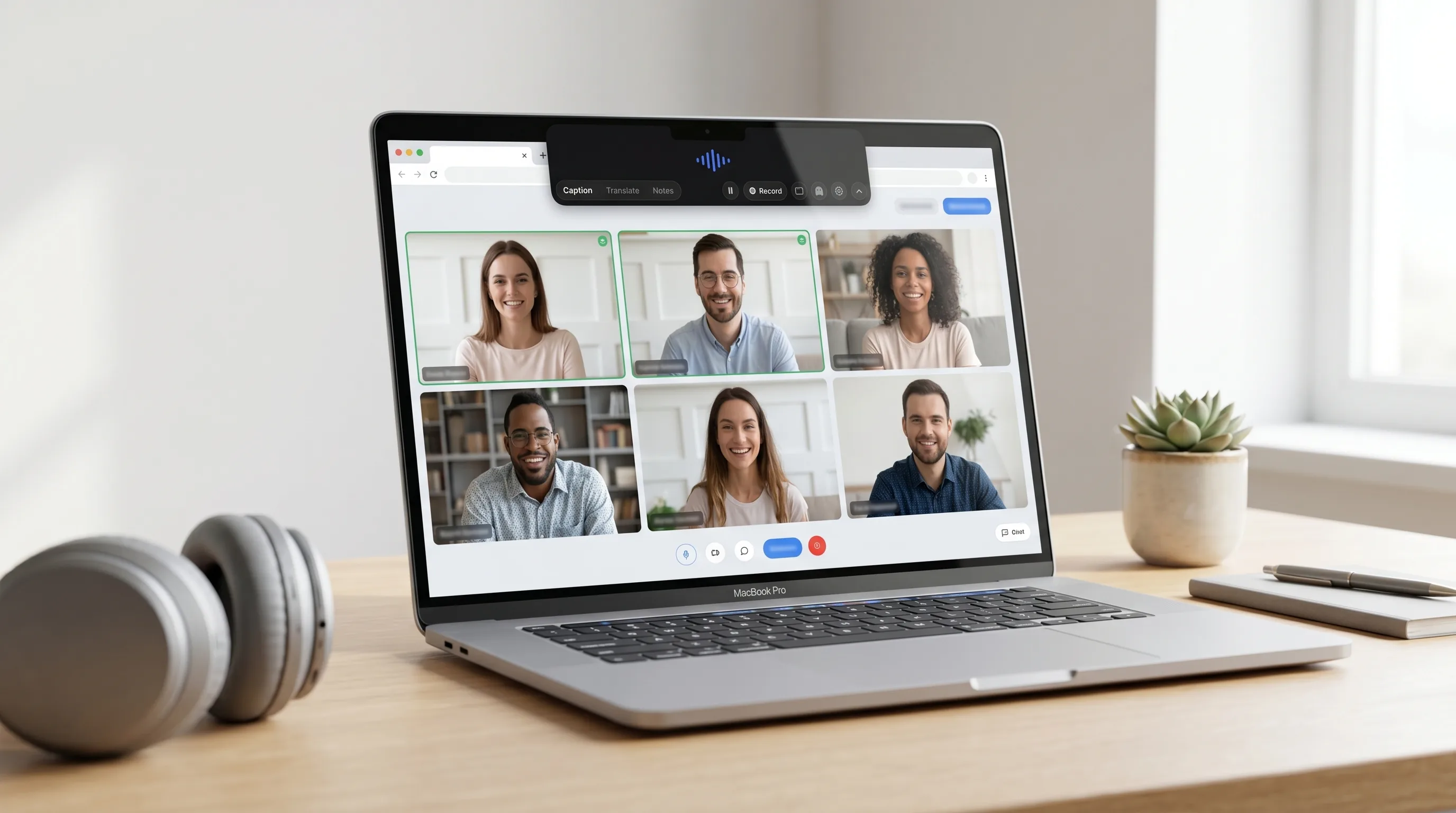
Google Meet has built-in captions, and for many calls they are enough. But built-in captions are tied to the meeting app. If you need captions for yourself across Mac audio, want a private no-bot workflow, or need optional transcripts after the call, a Mac-level caption tool can be a better fit.
Why caption Google Meet calls?
Captions help when audio is fast, noisy, accented, or in a second language. They are also practical accessibility support for people who are deaf, hard of hearing, tired, multitasking, or trying to follow a dense class or customer call.
Method 1: Google Meet built-in captions
Google Meet includes built-in captions. They are simple, free, and available inside the meeting interface. For casual calls, that may be all you need.
Best for: quick captions inside Meet.
Tradeoff: captions stay tied to the meeting app and do not become your private Mac-level caption workflow.
Method 2: NotchLive private captions for Mac audio
NotchLive captions the audio on your Mac instead of joining Google Meet. That means you do not need host settings, admin permission, or a meeting bot. Start captions, choose system audio or both system audio and microphone, and read the call in the notch or top-center caption bar.
If you need to keep a record, Pro can save sessions and export transcripts. If you only need personal captions, stay free and keep the workflow private.
Method 3: Apple Live Captions
Apple Live Captions can also caption audio on your Mac. It is built into macOS and useful as a simple baseline. NotchLive adds optional transcripts, translation, a notch-first display, and a no-bot workflow built around meetings, classes, videos, and everyday listening.
Comparison
Feature
Meet captions
Apple Live Captions
NotchLive
Works without a meeting bot
Yes
Yes
Yes
Mac-level audio captions
No
Yes
Yes
Optional transcripts
Meeting-dependent
No
Yes with Pro
Translation
Depends on Meet features
No
20 languages with Pro
Best for
Inside Meet
Basic system captions
Private captions, transcripts, and notes
Best setup by role
Participant: use Meet captions if they are enough, or NotchLive if you want private captions independent of the meeting setup.
Presenter: use NotchLive Caption Display when you want a larger caption window for screen sharing.
Student: use NotchLive when you want captions during class and optional transcripts afterward.
Hard-of-hearing user: use the workflow that stays most reliable across calls, videos, and non-meeting audio.
Multilingual call: use NotchLive Pro when translated captions are the main need.
Frequently asked questions
Can I caption Google Meet without turning on Meet captions?
Yes. NotchLive captions Mac audio outside Google Meet, so you can read private captions even when the meeting itself does not have captions enabled.
Does NotchLive appear as a Google Meet participant?
No. NotchLive runs locally on your Mac and does not join the meeting.
Download NotchLive free
Private captions for Google Meet and every Mac app. No meeting bot required.
 NotchLive