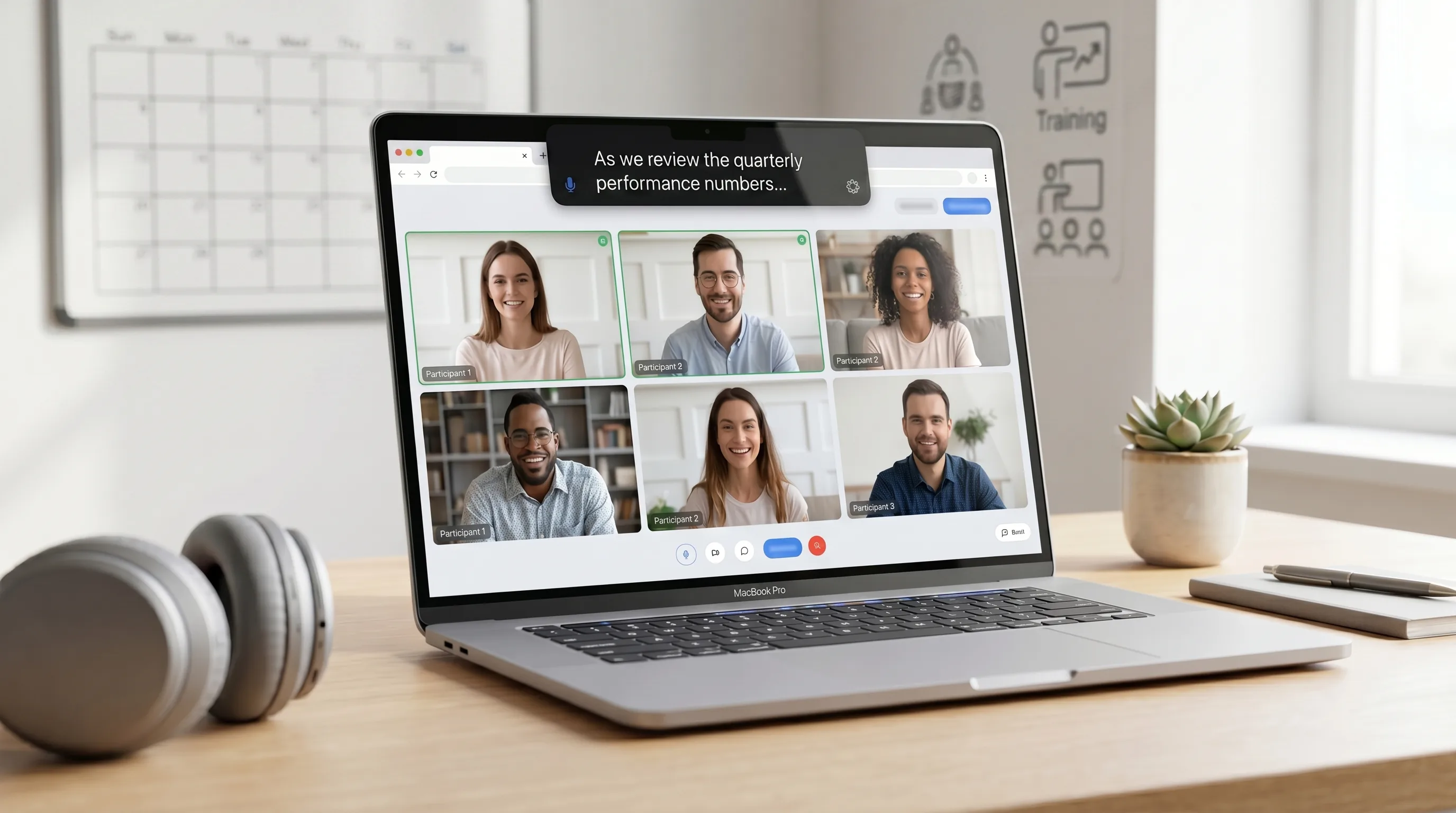
Microsoft Teams includes live captions, but captions inside Teams are not always the whole answer. You may want private captions that follow your Mac audio, work across apps, and do not depend on meeting settings. NotchLive gives Teams users a local caption workflow for calls, trainings, webinars, and everyday accessibility.
Why caption Microsoft Teams calls?
Captions make long calls easier to follow. They help with hearing accessibility, noisy rooms, fast speakers, second-language listening, trainings, webinars, and meetings where attention drifts and reading along makes re-entry easier.
Method 1: Teams built-in captions
Teams captions are the simplest place to start when they are available in your meeting. They keep captions inside Teams and do not require another app.
Best for: basic captions inside Teams.
Tradeoff: they are tied to Teams settings and do not become a Mac-wide caption or notes workflow.
Method 2: NotchLive private Mac captions
NotchLive listens to the audio on your Mac. For Teams calls, that means you can keep captions visible for yourself without changing the meeting setup or asking the organizer to enable anything. Captions can appear in the MacBook notch or a top-center bar, and Pro users can save transcripts when they need a record.
Method 3: Apple Live Captions
Apple Live Captions is useful for basic system captions. NotchLive is the more focused option when you want private meeting captions, optional transcripts, translation, a large Caption Display, or a workflow that can lead into notes.
Comparison
Feature
Teams captions
Apple Live Captions
NotchLive
Works without a meeting bot
Yes
Yes
Yes
Mac-level audio captions
No
Yes
Yes
Optional transcripts
Meeting-dependent
No
Yes with Pro
Translation
Depends on Teams features
No
20 languages with Pro
Best for
Inside Teams
Basic system captions
Private captions, transcripts, and notes
Best setup by role
Participant: use Teams captions if the meeting settings work, or NotchLive if you want private captions on your Mac.
Presenter: use NotchLive Caption Display for larger captions during screen sharing.
Trainer: use NotchLive for trainings, webinars, and recorded sessions you may want to review later.
Accessibility user: keep captions available across Teams, browser audio, videos, and microphone speech.
Frequently asked questions
Can NotchLive caption Teams calls without admin setup?
Yes. NotchLive runs on your Mac and captions local audio, so it does not require Teams admin configuration just to show private captions.
Can I use NotchLive for Teams webinars or trainings?
Yes. If speech plays through your Mac, NotchLive can caption it. That includes Teams meetings, webinars, trainings, and recorded sessions.
Download NotchLive free
Private captions for Microsoft Teams and every Mac app. No meeting bot required.
 NotchLive