 NotchLive
How to translate video audio on Mac in real time
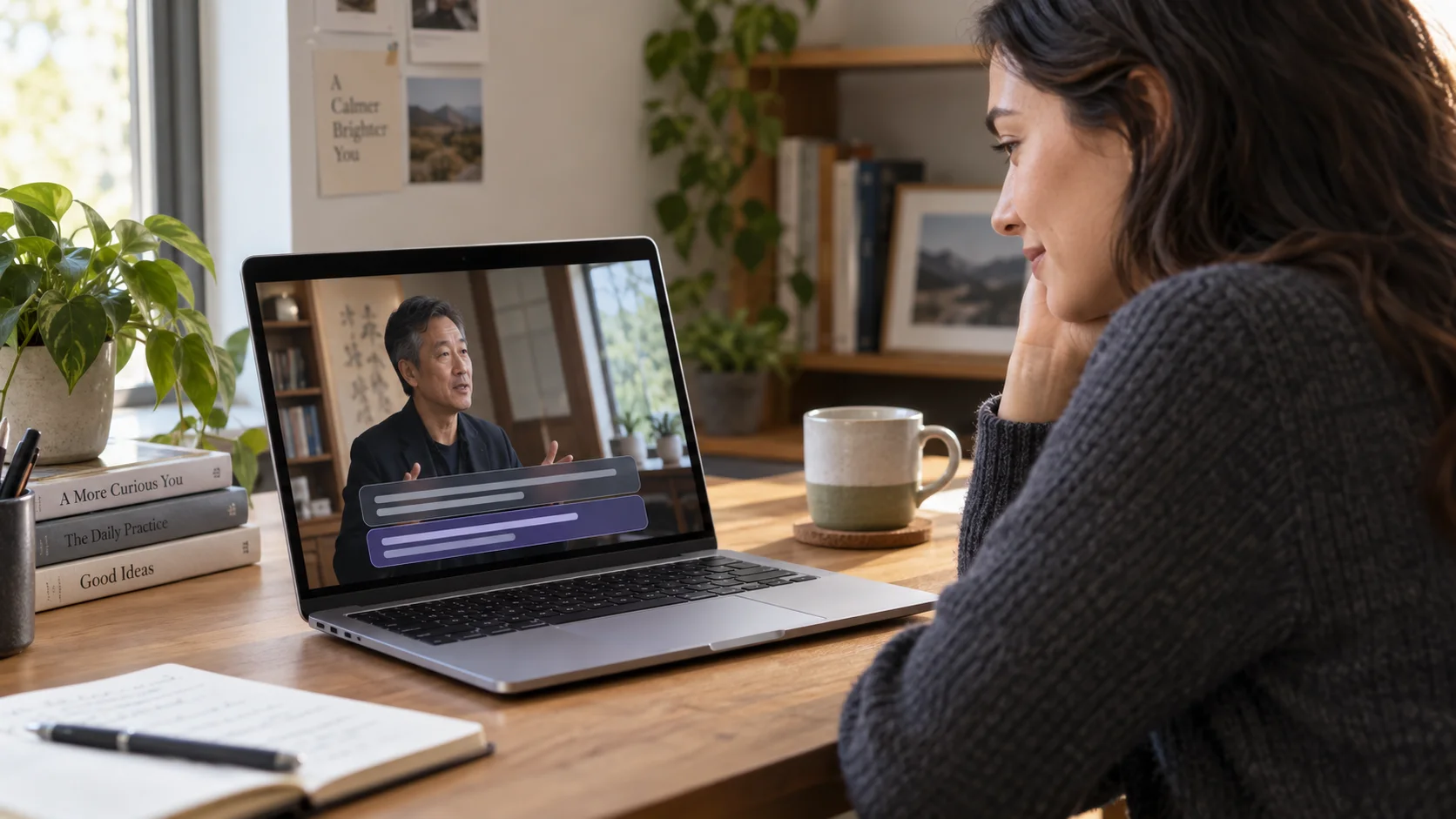
If a YouTube video, webinar, livestream, course, or local media player is already speaking through your Mac, you can translate that audio while it plays. You do not need to download the video, upload it to a translation website, or wait for a processed copy.
In NotchLive, choose Apps & Media as the audio source, switch the caption mode to Translate, and pick your target language. Turn on bilingual captions when you want the recognized speech and translation visible together.
Quick answer: play the video normally, start NotchLive with Apps & Media selected, choose Translate, then place the floating caption window beside or above the video.
Translate a playing video in four steps
- Open the video. Play it in Safari, Chrome, a webinar app, VLC, QuickTime Player, or another Mac app.
- Choose Apps & Media. This tells NotchLive to listen to audio produced by Mac apps rather than your microphone.
- Choose Translate and a target language. If you know the video's spoken language, selecting it explicitly can be more reliable than automatic language detection.
- Position the captions. Open the floating Caption Display, resize it, and turn on bilingual captions if the original wording helps you follow names or technical terms.
The first use requires speech-model setup. Translation requires NotchLive Pro, macOS 15 or later, a supported source-to-target language route, and any language resources macOS needs to download. The full controls are covered in the NotchLive translation guide.
Use the video's own subtitles when they already solve the problem
A video's built-in subtitle track is usually the simplest option when it is accurate, synchronized, and available in a language you understand. YouTube and some course platforms can also translate creator-provided captions.
A Mac-level translation layer becomes useful when the video has no captions, the available subtitle languages do not help, or the audio moves between a browser, webinar app, livestream, and local player. NotchLive follows the sound playing on your Mac rather than depending on one website's subtitle controls.
If you only need same-language captions, compare the available methods in our guide to real-time subtitles for Mac audio. Live captions are free in NotchLive; translation is the Pro step.
Live translation and file transcription solve different jobs
Use live translation when you need to understand the video now: a class that is in progress, a livestream, a webinar you joined late, or a long video you do not want to process first.
Use file import when you already have the recording and need a durable session for search, replay, speaker review, separate translation tabs, and export. NotchLive can transcribe an audio or video file on Mac without changing the source file.
| Situation | Better workflow | What you get |
|---|---|---|
| YouTube, webinar, or livestream playing now | Apps & Media + Translate | Live translated captions while you watch |
| Local video you want to watch once | Apps & Media + Translate | A translation overlay without importing the file |
| Recording you need to review or quote later | Import the file | Saved transcript, playback, translation tabs, and export |
| Video with accurate subtitles in your language | Use the embedded subtitles | The platform's native synchronized captions |
What happens to the video audio
NotchLive captures the audio stream that macOS makes available for Apps & Media. Whisper speech recognition runs on your Mac after the selected model is downloaded. Translate mode then uses Apple Translation for supported language pairs on compatible macOS setups.
The live workflow does not upload the video to NotchLive or add a bot to a call. It also does not need access to the video's subtitle track. It works from the speech you can hear through the Mac.
NotchLive does need macOS Screen & System Audio Recording permission to hear app audio. That permission allows audio capture; it does not mean NotchLive records your screen. Recording a saved NotchLive session is a separate Pro control.
Improve accuracy before judging the translation
Translation can only be as reliable as the recognized source caption. Start with the speech-recognition setup:
- Set the spoken language when the video mainly uses one language. Auto is useful when you do not know it or the content changes languages.
- Use a speech model that fits the Mac. Larger models can help with accents and dense vocabulary, while smaller models can reduce load and latency.
- Keep the source audio clear. Music over dialogue, several people speaking together, poor microphones, and very fast speech can reduce recognition quality.
- Keep the original line visible for names, numbers, product terms, and consequential wording that should be checked.
Live translation is designed to help you follow the meaning as media plays. It should not be treated as a certified translation of legal, medical, financial, or safety-critical material.
Recommended setup by video type
| Video type | Audio source | Display choice |
|---|---|---|
| YouTube lesson or documentary | Apps & Media | Bilingual captions beside the player |
| Live webinar or online course | Apps & Media | Floating captions kept above the browser |
| Livestream or podcast video | Apps & Media | Focus for the latest line, Timeline when you need to look back |
| Video call where your speech also matters | Everything | Timeline with original and translated captions |
The compatible apps guide explains the same audio-source model across browsers, meeting apps, and media players.
Know what live caption translation does not do
NotchLive translates recognized speech into captions. It does not replace the subtitle track inside a video, translate text printed on the screen, dub the speaker's voice, or send translated speech back into a call. Other viewers do not see your private caption window.
Those boundaries are useful when choosing a tool. If you need a translated video file to publish, use a video-localization workflow. If you need to understand spoken content privately while it plays, live translated captions are the more direct path.
Live video translation on Mac FAQ
Can I translate YouTube audio live on a Mac?
Yes. Play the video normally, choose Apps & Media in NotchLive, then select Translate and your target language. The same approach works for other browser video and Mac media apps.
Do I need to upload the video?
No upload is needed for live translation. If you own the file and need a saved transcript for later review, use the separate audio and video transcription workflow.
Can I see the original and translated captions together?
Yes. Enable bilingual captions in Translate mode to keep the recognized source line and translated line visible together.
Does live video translation work offline?
Whisper recognition runs locally after its model is downloaded. Translation availability depends on your macOS version, the selected language pair, and the language resources installed by macOS.
Is translation included in the free version?
Live captions are free forever. Translated captions require NotchLive Pro, which is a one-time purchase.
Translate the next video you watch
Start with free live captions, then use Pro for bilingual translated captions across videos, webinars, calls, and other Mac audio.
Download NotchLive